
Creating custom labels at home often feels like a recipe for frustration when sheets jam, designs print off-center, or ink smudges before it even dries. However, you can easily print clean, professional-looking label stickers using your standard home printer by matching your sticker paper to your specific printer technology, aligning your digital templates precisely, and adjusting your print settings to handle thicker media. Whether you are organizing your pantry, labeling school supplies, packaging homemade products, or creating custom crafts, mastering a few basic techniques will save you time, effort, and materials. By understanding how your printer interacts with adhesive sheets, you can transform a standard desktop setup into a reliable label production station.
What type of label paper should you choose for your regular printer?
You must choose label paper that explicitly matches your printer’s technology—either inkjet or laser—and fits your printer’s supported paper dimensions. Using the wrong type of paper is the most common cause of printing failures and can even damage your equipment. Laser printers use intense heat and pressure to fuse dry toner powder onto the page, which means laser-compatible label sheets must feature heat-resistant adhesives and face materials. If you feed inkjet-specific sticker paper into a laser printer, the high temperature can melt the synthetic coatings or cause the adhesive to seep out, potentially coating your printer’s fuser drum and causing permanent damage. Conversely, laser label paper lacks the absorbent coating required for liquid inkjet inks, leaving you with wet, pooling ink that smears at the slightest touch.
Beyond printer technology, you need to verify the physical dimensions and standard sizes of the sheets. In the Philippines, the most common paper sizes for home printers are A4 and Letter. Always check your printer’s manual to confirm which sizes its paper tray can reliably feed. Additionally, consider the material finish based on your intended application. Matte paper labels are highly versatile, easy to write on with standard pens, and dry almost instantly, making them ideal for shipping or organizing dry storage. Glossy and clear vinyl labels offer a vibrant, premium look for product packaging or decorative stickers, but they require specialized inkjet coatings to lock in liquid ink. Before purchasing any label sheets from an online marketplace or stationery store, inspect the manufacturer’s packaging to confirm it explicitly states compatibility with your specific printer type and ink formulation.
Products mentioned in this guide
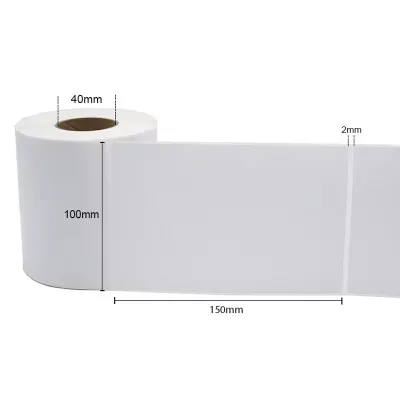
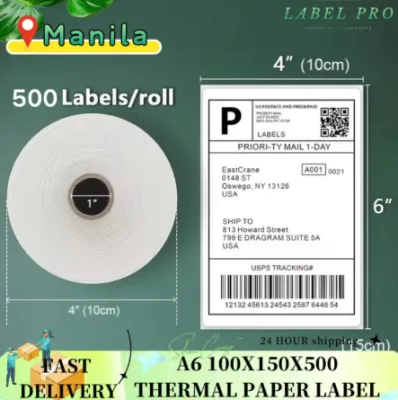
Prices are valid at publication and may change. Please refer to the product page for the latest price.
How do you design and format your labels to match the physical sheets?
To design labels that align accurately with physical sheets, you should use the official digital template matching your label paper’s product code or manually configure your software margins to match the sheet’s exact layout. Most reputable label manufacturers provide free downloadable templates for popular word processors and graphic design software. These templates are pre-formatted with the exact dimensions of each die-cut sticker on the sheet, including the margins and the gutters, which are the small gaps of waste paper between individual labels. Using these official templates eliminates guesswork and ensures your design software matches the physical reality of the page.

If you are using unbranded label sheets, you will need to set up custom margins manually. Use a precise ruler to measure the top, bottom, left, and right margins of the sheet, as well as the width and height of a single label and the spacing between them. When placing your design elements, always account for non-printable margins. Most standard home printers cannot print all the way to the edge of a sheet, typically leaving a 3mm to 5mm blank border around the perimeter. Keep all critical text, logos, and essential graphics well inside a “safe zone”—at least 2mm away from the individual label’s die-cut edge. If your design features a solid background color or pattern, extend that background slightly past the die-cut border. This technique, known as creating a “bleed,” ensures that if the paper shifts slightly as it feeds through the printer, you will not end up with an unsightly white sliver along the edge of your finished sticker. Finally, ensure your images are saved at a high resolution of at least 300 DPI (dots per inch) and use clean, legible fonts to prevent your text from blurring at actual size.
What are the correct printer settings for successful label stickers printing?
Successful label printing requires changing your printer’s media type setting to “Labels,” “Heavy Paper,” or “Cardstock” and selecting the manual feed tray to ensure smooth paper passage. Standard printer settings are optimized for thin, lightweight copy paper, usually around 70gsm to 80gsm. Label sheets are significantly thicker and stiffer because they consist of three distinct layers: the printable face sheet, the adhesive layer, and the silicone-coated backing paper. If you leave your printer set to standard plain paper, the rollers will pull the thick sheet through too quickly, which can cause misalignments, paper jams, or incomplete toner fusing in laser printers. Changing the media type in your print dialog tells the machine to slow down the feeding speed, adjust roller tension, and optimize the heat of the fuser to secure the toner without overheating the adhesive.
Print quality settings also play a vital role in the final output. For most projects, selecting “Standard” or “High” quality is recommended. Avoid “Draft” or “Fast” modes, which conserve ink but often produce faded colors and visible banding lines. When printing on glossy or clear vinyl sheets, high-quality settings are particularly beneficial because they apply ink more precisely; however, you must monitor the sheet as it exits to ensure the ink does not pool. If your printer features a manual feed slot or a bypass tray, always use it instead of the main paper cassette. The manual feed slot provides a much flatter, straighter paper path through the printer’s internal mechanisms. This minimizes the sharp bends and curves that the sheet must navigate, drastically reducing the risk of the labels peeling off inside the printer and sticking to the rollers.
How can you test and align your print before using the actual label sheets?
You can prevent wasting expensive label sheets by printing your design onto a standard sheet of plain paper first and comparing it directly to your physical label sheet. Specialty sticker paper can be costly, sometimes exceeding ₱15 per sheet for premium waterproof vinyl, making trial-and-error printing on the actual media an expensive habit. To perform a proper alignment check, load a sheet of standard, inexpensive copy paper that is the exact same size (such as A4 or Letter) as your label sheet. Open your print dialog and double-check that the scaling option is set to “Actual Size” or “100% Scale.” Ensure that options like “Fit to Page,” “Shrink Oversized Pages,” or “Scale to Fit” are completely disabled, as these automatic settings will alter your design’s dimensions and ruin your alignment.
Once your test page prints, place it directly on top of an unused sheet of your label paper, ensuring the edges of both sheets are precisely aligned. Hold the stacked sheets up together against a bright window, a desk lamp, or another strong light source. By looking through the paper, you will be able to see exactly where your printed design falls in relation to the physical die-cut borders of the stickers. If the design is centered accurately within the borders, you are ready to print on your actual label paper. If the design is shifted consistently in one direction—for example, 2mm too low or 1mm to the left—do not attempt to manually adjust the physical printer tray. Instead, return to your design software and adjust your page margins by those exact measurements to compensate for the shift, then run another plain paper test to verify the correction.
What common mistakes cause smudging, peeling, or jamming, and how do you prevent them?
You can prevent smudging, peeling, and paper jams by allowing prints to cure completely, fanning the sheets before loading, and never feeding a partially used label sheet through the printer. Ink smudging is a frequent issue, particularly on glossy, clear, or synthetic vinyl sheets printed with inkjet technology. Because these non-porous surfaces take longer to absorb liquid ink, you must allow the printed sheet to sit undisturbed for several minutes after it exits the printer. To verify drying speed and water resistance, perform a gentle smear test on a small, non-essential corner of the sheet before handling the rest of the labels. If smudging continues to occur even after ample drying time, it indicates that your ink type (such as pigment-based ink) is incompatible with that specific glossy coating, and you may need to switch to a matte paper or a different brand of compatible media.
Paper jams are usually caused by static electricity, adhesive seepage, or feeding damaged sheets. Label sheets stored in humid environments can absorb moisture, causing the edges to curl or stick together. Before loading your label paper into the printer tray, gently fan the edges of the stack to introduce air between the sheets and break any static bond. Load only three to five sheets at a time, or feed them individually if your printer is prone to double-feeding. Most importantly, never run a sheet through the printer if some of the labels have already been peeled off. The empty spaces on a partially used sheet expose the sticky adhesive backing directly to the printer’s hot rollers and paper path. This exposed adhesive will easily catch on internal components, leading to severe jams that can be incredibly difficult to clean and may require professional repair. If you only need to print a few labels, design them to fill the top of the sheet first, and save the unused portion to be cut down manually for future single-use projects if your printer supports custom paper sizes.
Community discussion
Share your experience or ask a question. Comments are reviewed before publication.