
Choosing your first digital art drawing tablet in the Philippines is an exciting milestone, but navigating the vast array of specifications, brands, and price points can feel overwhelming. Whether you are a student looking to start digital sketching, an aspiring illustrator, or a hobbyist transitioning from traditional paper to pixels, selecting the right device is crucial for a smooth learning curve. The ideal beginner tablet balances affordability, reliable performance, and ease of use, allowing you to focus on mastering fundamental drawing skills rather than wrestling with complicated hardware setups.
For most beginners in the Philippines, the best starting point is a reliable, screenless pen tablet or an entry-level pen display that fits comfortably within a standard desk space. These devices provide the necessary precision and pressure sensitivity required for digital sketching without demanding a massive financial investment. By understanding how key specifications impact your daily drawing experience, you can make an informed decision that matches your creative goals and budget.
What to Look for in a Beginner Digital Drawing Tablet
When purchasing a digital art drawing tablet, it is easy to get distracted by high-end professional features that add significant cost without necessarily aiding your learning process. Focusing on the core specifications ensures you get a functional, durable tool that supports your growth as an artist.
Products mentioned in this guide
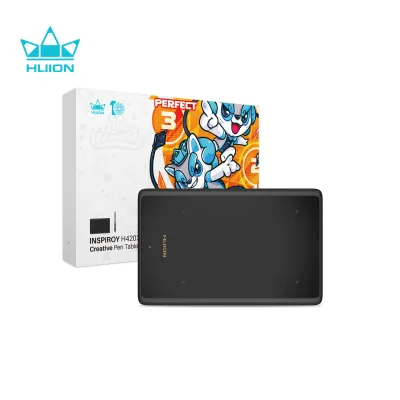
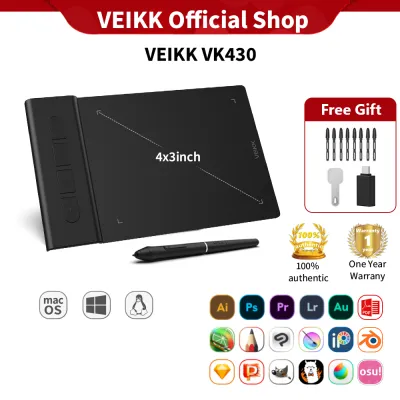
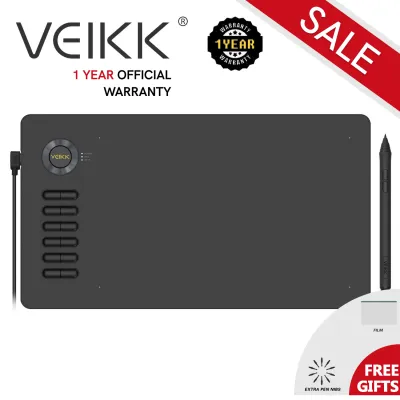
Prices are valid at publication and may change. Please refer to the product page for the latest price.
Active Area Size
The active area refers to the specific portion of the tablet surface that responds to your stylus input. It does not include the plastic bezel or shortcut button areas. For beginners, a small to medium active area (roughly equivalent to an A5 sheet of paper, or about 8 by 5 inches) is generally the most practical choice.
A medium-sized tablet provides a natural balance, offering enough space for comfortable arm movements without requiring you to stretch your shoulder. Small tablets (around 6 by 4 inches) are highly portable and fit easily onto cramped student desks or cafe tables in busy metropolitan areas, but they require you to zoom in and out of your digital canvas more frequently. If you use a large external monitor, a tiny tablet can also feel overly sensitive, as a small physical stroke translates to a large jump on the screen.
Pressure Sensitivity and Report Rate
Pressure sensitivity dictates how well the tablet responds to the amount of force you apply with the stylus. This feature allows you to control line weight, opacity, and shading transitions naturally, mimicking traditional pencils and brushes. Modern entry-level tablets typically offer between 4,096 and 8,192 levels of pressure sensitivity. While 8,192 levels is the current industry standard, a tablet with 4,096 levels is still perfectly adequate for learning line weight control and shading fundamentals.
The report rate, measured in Reports Per Second (RPS) or Points Per Second (PPS), indicates how fast the tablet communicates the pen’s position to your computer. A higher report rate (ideally above 200 RPS) reduces input lag, ensuring that your digital lines follow your physical hand movements smoothly and without noticeable delay.
Pen Display vs. Pen Tablet (Screenless)
One of the most significant decisions you will make is choosing between a screenless pen tablet and a pen display (a tablet with a built-in screen):
- Screenless Pen Tablets: These devices require you to look up at your computer monitor while drawing on the tablet surface on your desk. This setup demands a unique hand-eye coordination learning curve that usually takes a few days to master. However, screenless tablets are highly durable, lightweight, require fewer cables, and are much more budget-friendly. They also encourage better ergonomics, as you look straight ahead at your monitor rather than hunching over a screen.
- Pen Displays: These allow you to draw directly on the screen, mimicking the traditional paper experience. This visual feedback makes the transition to digital art highly intuitive. The trade-offs include higher costs, a heavier build, a reliance on multiple cable connections (HDMI, USB, and power), and potential neck strain if used without an adjustable stand.
Connectivity and Device Compatibility
Before finalizing your purchase, verify that the tablet is compatible with your existing operating system, whether you use Windows, macOS, ChromeOS, or Android. Many modern beginner tablets offer plug-and-play compatibility, but installing the manufacturer’s official driver is always necessary to unlock pressure sensitivity and customize shortcut keys.
Additionally, check the physical ports on your laptop or computer. If your laptop only has USB-C ports, you may need a tablet that supports direct USB-C to USB-C connections, or you will need to use a reliable USB hub. In the tropical climate of the Philippines, humidity can sometimes cause static or connection issues in ports over time. Choosing tablets with robust, modern USB-C connections and keeping your cables neatly stored in dry, dust-free cases will help maintain stable performance.
Top Picks for Beginner Digital Art Drawing Tablets
To help you find the right device, here are three highly recommended beginner tablets available through authorized local distributors and major online marketplaces in the Philippines. These selections focus on build quality, stylus performance, and overall value.

Best Screenless Pen Tablet for Absolute Beginners
The One by Wacom (Medium, CTL-472) is widely regarded as the gold standard for absolute beginners who want a reliable, no-nonsense drawing experience. Wacom has long been a leader in the digital art industry, and this entry-level model strips away unnecessary distractions to focus purely on drawing performance.
This tablet features a sleek, minimalist design with a bright red backplate and a textured, paper-like drawing surface. The active area of the medium version measures 8.5 by 5.3 inches, providing an ideal canvas size for most laptop and desktop monitors. The included stylus is completely battery-free, meaning you never have to worry about charging it or replacing batteries mid-sketch. It utilizes Wacom’s proprietary electromagnetic resonance (EMR) technology to deliver 2,048 levels of pressure sensitivity. While this spec is lower on paper than some competitors, Wacom’s superior driver optimization ensures the pen tracking feels incredibly smooth, precise, and organic.
The main limitation of the One by Wacom is its lack of physical express keys on the tablet body, meaning you must rely on your computer keyboard for shortcuts like undo, zoom, and brush resizing. However, many educators prefer this setup for beginners, as it encourages proper keyboard shortcut habits that translate well to professional studio environments.
Best Budget Pen Display for Visual Learners
For beginners who prefer drawing directly on a screen, the Huion Kamvas 13 offers an exceptional balance of performance and value. It is one of the most affordable fully laminated pen displays on the market, making it highly accessible for students and hobbyists in the Philippines.
The Huion Kamvas 13 features a 13.3-inch Full HD (1920 x 1080) IPS screen with an anti-glare protective film. The fully laminated display minimizes parallax—the distracting air gap between the physical pen tip and the digital cursor beneath the glass—providing a highly accurate drawing experience. The tablet boasts an impressive 120% sRGB color gamut, ensuring your sketches look vibrant and color-accurate. The included PW517 stylus utilizes Huion’s PenTech 3.0, offering 8,192 levels of pressure sensitivity and 60 degrees of tilt support, which allows you to shade naturally just like a real graphite pencil.
Keep in mind that setting up a pen display requires a bit more cable management. The Kamvas 13 comes with a 3-in-1 cable that requires an HDMI port, a USB port for data, and a USB port for power on your computer. If your computer cannot supply enough power through its USB ports, you will need to plug the power cable into an external wall adapter. It also features eight customizable express keys on the side, allowing you to streamline your workflow without constantly reaching for your keyboard.
Best Compact Tablet for Students and Travel
If you need a portable sketching tool that easily fits into a backpack alongside your laptop, the XP-Pen Deco Mini 7 is an outstanding, travel-friendly option. It is specifically designed for artists on the move, students commuting to university, or anyone working with limited desk space.
Despite its compact size, the Deco Mini 7 features an active area of 7 by 4.37 inches, which is large enough for detailed sketching while remaining incredibly lightweight and slim. It comes equipped with eight customizable express keys that have a satisfying, tactile click, allowing you to program your most-used shortcuts. The battery-free stylus provides 8,192 levels of pressure sensitivity and supports up to 60 degrees of tilt brush effects.
One of the standout features of the Deco Mini 7 is its native support for Android devices. Using the included USB-to-USB-C OTG adapters, you can connect this tablet directly to your Android smartphone or tablet. This allows you to sketch on mobile drawing apps without needing a bulky laptop, making it perfect for quick outdoor sketching sessions in parks or local coffee shops. The robust USB-C interface ensures a stable connection and reduces wear and tear on the port over time.
Quick Comparison of Recommended Beginner Tablets
The following table summarizes the key technical specifications and primary use cases of the three recommended tablets to help you compare them at a glance.
| Model Name | Type | Active Area / Screen Size | Key Connectivity | Best For |
|---|---|---|---|---|
| One by Wacom (Medium, CTL-472) | Screenless Pen Tablet | 8.5 x 5.3 inches | Micro-USB to USB-A | Budget-conscious beginners seeking maximum reliability and simplicity |
| Huion Kamvas 13 | Pen Display (Screen) | 13.3-inch screen (11.6 x 6.5 inches active) | 3-in-1 Cable (HDMI/USB) or Full-Featured USB-C | Visual learners who want to draw directly on a screen with minimal parallax |
| XP-Pen Deco Mini 7 | Screenless Pen Tablet | 7.0 x 4.37 inches | USB-C (Supports Android OTG) | Students, mobile artists, and those with limited workspace or travel needs |
Getting Started: Setup and First Sketching Tips
Once you have unboxed your new digital art drawing tablet, taking the time to set it up correctly will prevent technical frustrations and help you build confidence as you begin sketching.
Driver Installation
Before plugging your tablet into your computer, visit the manufacturer’s official website (Wacom, Huion, or XP-Pen) to download the latest driver software for your specific operating system. Do not rely on generic plug-and-play operating system drivers, as they rarely support pressure sensitivity or shortcut customization.
If you have previously owned or tested another drawing tablet, make sure to completely uninstall any old tablet drivers before installing the new ones. Having multiple tablet drivers installed simultaneously can cause severe system conflicts, resulting in erratic pen behavior or a complete loss of pressure sensitivity. Once the installation is complete, restart your computer before plugging in your tablet.
Pen Calibration and Mapping
Open your tablet’s driver configuration software to calibrate your pen and adjust the mapping settings:
- Aspect Ratio Mapping: Ensure the tablet's active area is mapped proportionally to your monitor's aspect ratio (usually 16:9). If the mapping is disproportionate, drawing a perfect physical circle on your tablet will result in an oval on your screen.
- Pressure Curve Adjustment: Most drivers allow you to adjust the pressure curve. If you have a light hand, you can make the curve more sensitive so you do not have to press down too hard. If you tend to press heavily, adjusting the curve to be firmer will prevent your lines from immediately reaching maximum thickness.
- Screen Calibration (For Pen Displays): If you are using a pen display like the Huion Kamvas 13, run the screen calibration tool in the driver software. This aligns the digital cursor directly with your physical pen tip based on your viewing angle.
Software Selection
You do not need to purchase expensive professional software to start sketching. Excellent free and low-cost digital art applications are highly capable and beginner-friendly:
- Krita (Free, Open-Source): A powerful desktop application designed specifically for digital painting and sketching. It features an incredibly robust brush engine, customizable interface, and advanced layer management.
- MediBang Paint (Free): A lightweight software optimized for comic art and illustration. It runs smoothly even on older laptops and budget computers, making it popular among students in the Philippines.
- ibisPaint (Free/Paid): An outstanding option if you are connecting your tablet to an Android smartphone or tablet, offering a massive selection of brushes and intuitive touch controls.
Overcoming the Learning Curve
If you are using a screenless tablet, the initial disconnect between drawing on your desk and looking at your monitor can feel unnatural. To build muscle memory and hand-eye coordination quickly, try these simple daily exercises for 10 to 15 minutes before you start sketching:
- The Dot-to-Dot Exercise: Draw random dots across your canvas, then practice connecting them with single, smooth, straight lines without looking down at your hand.
- Concentric Shapes: Practice drawing nests of circles, squares, and triangles inside one another. Focus on keeping the spacing between the lines as consistent as possible.
- Gradient Shading: Create a series of boxes and practice shading them from absolute black to pure white using cross-hatching or pressure-controlled brush opacity. This helps you master the physical pressure range of your stylus.
In tropical environments, hand sweat can make drawing on glass or plastic surfaces sticky. Using a two-finger drawing glove—which is often included with Huion and XP-Pen tablets—will significantly reduce friction, allowing your hand to glide smoothly across the active area while keeping the surface clean.
Frequently Asked Questions (FAQ)
Do I need a drawing tablet with a screen to start sketching?
No, you do not need a drawing tablet with a screen to start sketching or to create professional-quality digital art. Screenless pen tablets are highly capable, durable, and significantly more affordable. While pen displays offer an intuitive transition for those used to paper, screenless tablets encourage better posture by keeping your eyes level with your monitor. Many professional illustrators and concept artists continue to use screenless tablets throughout their careers due to their ergonomic benefits and long-term durability.
Can I connect my drawing tablet to a smartphone or tablet?
Yes, but compatibility depends entirely on the specific model of your drawing tablet and the operating system of your mobile device. Many modern tablets from brands like XP-Pen and Huion offer native plug-and-play support for Android devices via USB-C OTG (On-The-Go) adapters. However, iOS devices (iPhones and iPads) generally do not support external drawing tablets. Always check the manufacturer’s official compatibility specifications and ensure your Android phone supports OTG connections before purchasing a tablet for mobile sketching.
Community discussion
Share your experience or ask a question. Comments are reviewed before publication.