
When managing a small retail shop, handling daily bookkeeping, or performing high-volume accounting tasks, a calculator with receipt paper provides an indispensable physical audit trail. Choosing the right model requires looking beyond basic arithmetic functions to evaluate the print mechanism, paper compatibility, display capacity, and keyboard ergonomics. By matching these technical specifications to your specific volume and archival requirements, you can avoid common issues like paper jams, faint prints, or premature mechanical failure. The ideal machine should streamline your workflow, offering clear physical records that align with your auditing or compliance needs.
Choosing a Calculator with Receipt Paper: Thermal vs. Ink Mechanisms
The printing technology is the most fundamental choice you will make, as it dictates your ongoing maintenance tasks, print speed, and how long the printed records will remain legible.
Thermal vs. Ink Roller Printing
Thermal printing calculators use heat to activate a chemical reaction on specially treated thermal paper, eliminating the need for ink ribbon replacements. This mechanism operates quietly and quickly, making it excellent for busy office environments where noise is a distraction. However, thermal paper is highly sensitive to heat, light, and friction. Over time, the printed text will naturally fade, meaning these receipts are generally unsuitable for long-term tax archives or multi-year audits unless photocopied.
Products mentioned in this guide
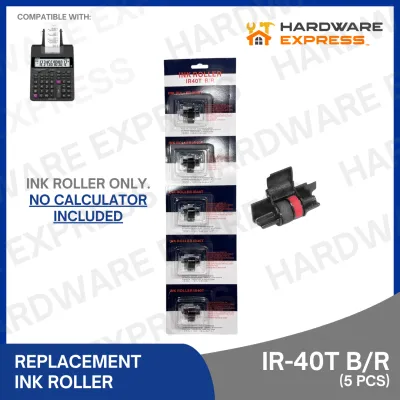
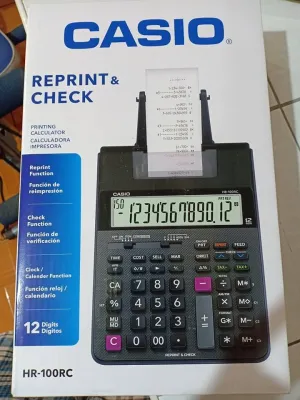
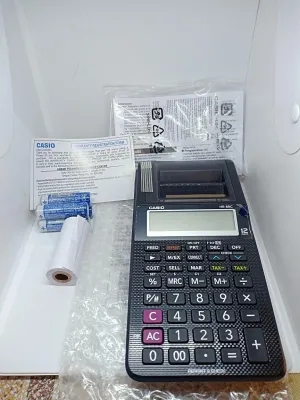
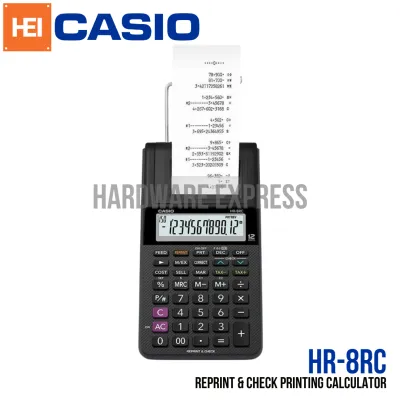
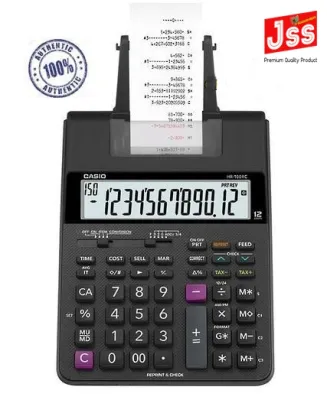
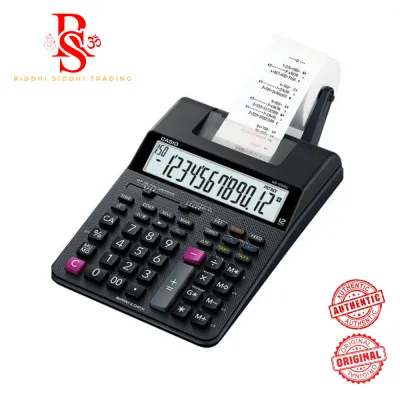
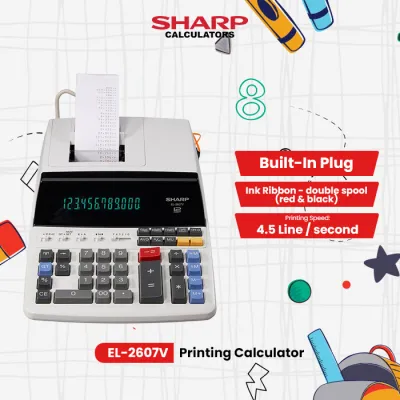
Prices are valid at publication and may change. Please refer to the product page for the latest price.
In contrast, ink roller or ribbon printing models strike physical ink onto standard plain paper. This process creates highly durable, fade-resistant records that can be stored safely in filing cabinets for years. The trade-off is that ink models require periodic replacement of ink rollers or ribbon cartridges, and the physical striking mechanism is noticeably louder than thermal alternatives. If your local compliance or internal auditing guidelines require permanent physical records, an ink-based system is typically the safer choice.
Understanding Print Speed
Print speed determines how quickly the machine outputs physical records during rapid data entry, and it is measured in lines per second (lps). Standard models usually print between 1.5 and 2.0 lines per second, which is perfectly adequate for occasional back-office calculations or small business bookkeeping. Heavy-duty desktop models often operate at 3.0 to 4.5 lines per second. Before purchasing, verify the rated speed on the manufacturer’s specification sheet to ensure the machine can keep pace with your touch-typing speed without causing input lag or paper feeding delays.
Paper Roll Width and Compatibility
To avoid paper jams and high operational costs, you must verify the exact paper roll dimensions and material specifications supported by your calculator.

Most printing calculators use standard paper roll widths, typically 57mm or 58mm for compact and medium-duty models. Heavy-duty desktop calculators may occasionally utilize wider formats, such as 70mm or 80mm, which allow for more detailed multi-column prints. Always check the calculator’s user manual or the physical compartment cover to confirm the exact width required before purchasing bulk rolls.
Beyond width, the maximum outer diameter of the paper roll is a critical physical constraint. While a standard roll might fit the width, a roll with too large a diameter will not fit inside the internal compartment or on the external plastic arm, leading to tension issues or feeding jams. If you are using an external roll holder, ensure it is securely attached and aligned with the entry slot to maintain smooth paper flow.
In tropical environments like the Philippines, high relative humidity can significantly affect paper performance. Thermal paper rolls can absorb moisture from the air, causing them to swell slightly, stick together, or fail to feed smoothly through the print head. To prevent premature fading or mechanical jams, store your spare paper rolls in a cool, dry place, sealed in their original plastic packaging until they are ready for use.
Finally, always double-check the paper type required by your specific model. Ink roller calculators require standard plain bond paper, which absorbs the liquid ink without smudging. When selecting plain paper for ink models, look for high-grade bond paper to ensure fast drying speed and high bleed resistance, which prevents the physical ink from smudging or feathering during rapid printing. Attempting to run thermal paper through an ink calculator, or plain paper through a thermal calculator, will result in blank printouts, severe smearing, or physical damage to the print head.
Display Digits and Keyboard Ergonomics
A calculator’s physical interface directly impacts data entry speed and accuracy, especially during extended working sessions.
Digit Display Capacity
Printing calculators are categorized by their maximum display and print capacity, usually ranging from 10 to 14 digits. A 10-digit model is suitable for basic retail transactions and modest daily totals. For standard corporate accounting, small business tax preparation, and general office tasks, a 12-digit display is the industry standard. For instance, if you are computing daily retail sales in Philippine Pesos (₱), a 12-digit display comfortably accommodates figures up to hundreds of billions. If you manage large-scale financial portfolios or aggregate corporate budgets, a 14-digit model provides the necessary headroom to prevent overflow errors. The printed receipt typically mirrors this capacity, ensuring that your physical records match the on-screen display character for character.
Key Layout and Tactile Feedback
Keyboard design is crucial for touch-typists who enter data without looking at the keys. Look for a model with color-coded keys that clearly separate numerical entry from operational functions like addition, subtraction, and memory keys. A raised tactile bump on the “5” key is essential, serving as a physical home row indicator for your hand. Key travel and resistance should feel consistent; keys that are too soft can lead to accidental double-presses, while overly stiff keys cause hand fatigue. Ensure the calculator features a robust key rollover system, which registers inputs accurately even when keys are pressed in rapid succession.
Power Sources and Workflow Functions
Operational reliability and specialized math functions are the final pieces of the selection puzzle, ensuring the machine fits seamlessly into your daily business operations.
Many desktop printing calculators rely on dual power systems, combining a primary AC adapter with a small battery backup. This battery backup is vital because it preserves your current grand totals, tax rates, and memory settings during unexpected power interruptions or when moving the unit between desks. When setting up your device, verify the AC adapter’s voltage rating on the product label. In the Philippines, the standard utility voltage is 220V at 60Hz; plugging a 110V-only adapter directly into a local outlet without a proper step-down transformer will damage the electronics and void your warranty.
Beyond power, evaluate the built-in function keys to match your specific business tasks. Standard accounting workflows benefit immensely from dedicated cost-sell-margin keys, which calculate profit margins instantly without multi-step formulas. If you regularly handle sales transactions, look for customizable tax keys that allow you to program local tax rates (such as VAT) for one-touch calculations. Other useful features include grand total (GT) memory registers, item counters to track the number of items on a single receipt, and decimal selectors that let you lock the output to a specific rounding method.
Frequently Asked Questions (FAQ)
Can I use standard POS receipt paper in a printing calculator?
Compatibility depends entirely on the roll width, outer diameter, and paper type. If your point-of-sale (POS) terminal uses 57mm thermal paper and your printing calculator is a thermal model designed for 57mm rolls, you can use the same paper. However, you must ensure the outer diameter of the POS roll does not exceed the maximum capacity of the calculator’s paper compartment. Never use thermal paper in an ink-roller calculator, or standard plain paper in a thermal calculator, as this will prevent printing and may cause mechanical jams.
How long do thermal calculator receipts last?
Thermal receipts are intended for short-term transaction verification and typically remain legible for one to three years under ideal storage conditions. However, because the paper is heat-sensitive, exposure to direct sunlight, high humidity, or friction will accelerate fading, sometimes rendering the text unreadable in just a few months. If your business requires permanent, long-term physical records for tax audits or compliance, you should use an ink-roller or ribbon-based calculator with plain paper, or make digital scans of critical thermal receipts.
Community discussion
Share your experience or ask a question. Comments are reviewed before publication.