
Quick Answer: Is the Casio JW-200SC Right for You?
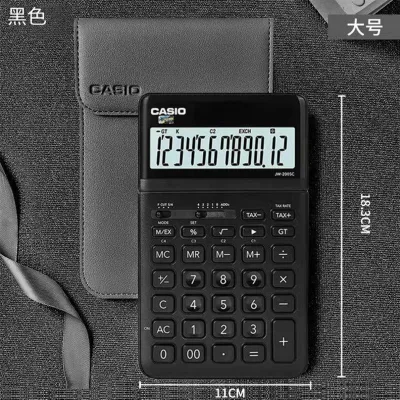
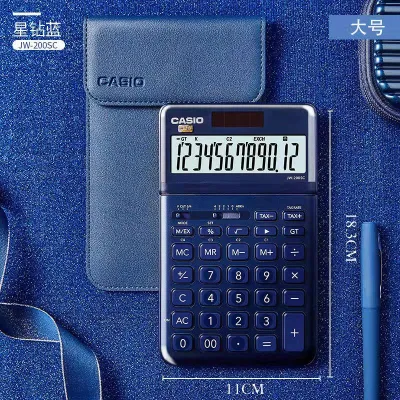
The Casio JW-200SC is a mid-sized desktop calculator designed primarily for general office tasks, retail math, and personal budgeting where aesthetic appeal and a tiltable display are key. It fits users who need standard 12-digit calculations, basic tax functions, and a modern look for their workspace. If you value a sleek design with a metal faceplate and a screen that adjusts to block overhead glare, this model is a highly practical choice.
However, if your daily routine involves heavy-duty data entry, continuous accounting audits, or highly complex scientific formulas, other Casio lines will serve you better. Heavy-duty commercial models offer larger, double-injection keys for rapid typing, while scientific models provide the advanced mathematical functions required for engineering and technical fields. Always check the official specification sheet of the exact model variant to confirm specific features before making your final purchase.
Core Features to Verify on the Casio JW-200SC
Before purchasing the Casio JW-200SC, it is essential to verify its core specifications on the product packaging or official store listing to ensure it aligns with your daily workflow.
Products mentioned in this guide
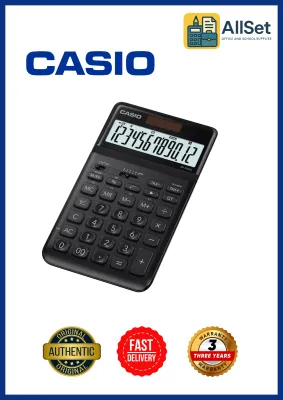
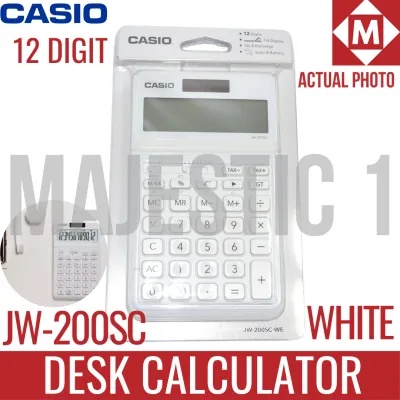
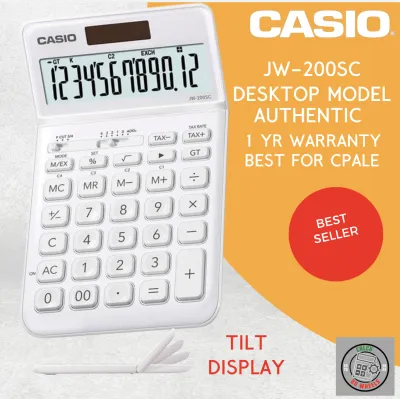
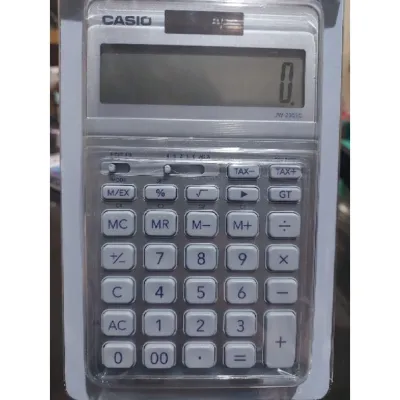

Prices are valid at publication and may change. Please refer to the product page for the latest price.

Display Capacity and Angle Adjustments First, confirm the display capacity, which is standard at 12 digits. This allows you to process large numbers without encountering overflow errors. Next, inspect the adjustable tilt mechanism. In bright office environments, a tiltable screen is invaluable for eliminating glare from overhead fluorescent lights, allowing you to read the numbers clearly from various seating positions.
Power Source Configuration Verify that the calculator features a dual-power system. This setup combines a solar panel with a backup button battery. The solar panel powers the device under normal room lighting, while the backup battery ensures the screen does not fade during sudden light changes or when working in dimly lit corners. This dual configuration is highly reliable for continuous daily use.
Key Layout and Tactile Feedback Examine the key spacing and keycap material. The keys should feel responsive and have clear, legible markings that do not wear off easily under daily finger friction. A well-spaced layout prevents accidental double-presses, which is crucial when inputting long strings of financial data.
Physical Footprint and Weight Check the physical dimensions and weight of the unit. The JW-200SC is designed to sit comfortably on a standard desk without taking up excessive space. A moderate weight, combined with rubber feet on the base, ensures the calculator remains stable and does not slide around while you type.
Key Dimensions for Comparing Casio Desktop Models
To choose the right calculator, you must compare the JW-200SC against other Casio desktop models using observable and verifiable metrics. This structured approach helps you identify which model best suits your specific environment.
Display and Readability Compare the digit limits across different models, which typically range from 10 to 14 digits. A 12-digit display is standard for most business transactions, handling values up to hundreds of billions. Evaluate the screen size and contrast. In high-humidity environments, look for displays with clear liquid crystal elements that remain sharp and do not fog up or fade over time.
Power and Longevity Solar-only models require consistent ambient light to function, whereas dual-power models use a small battery to maintain memory and display contrast when light levels drop. Check the manufacturer’s estimated battery life on the packaging, keeping in mind that actual longevity depends on daily usage hours and storage conditions. Models with automatic power-off features help conserve battery life when the device is left idle.
Build and Ergonomics Heavy-duty models often feature plastic keys with molded keycaps where the legends are injected through two layers of plastic, preventing wear. Standard models may use printed legends. Look for robust rubber feet on the base; a stable, anti-slip grip is crucial when typing quickly on smooth wooden or glass desks. The tactile feedback of the keys—whether they offer a soft membrane feel or a clicky response—should match your personal typing preference.
Specialized Functions Verify the presence of dedicated keys that match your daily tasks. Tax keys simplify calculating local value-added tax (VAT). Currency conversion keys allow quick switching between local currency and foreign currencies. Markup or markdown keys are essential for retail pricing calculations. Ensure the model you choose has the exact functional keys your workflow demands, as some compact models omit these specialized inputs to save space.
Decision Framework: Matching the Calculator to Your Workflow
Selecting the right Casio calculator depends on your daily tasks and workspace constraints. Use the following guidelines to match a model to your specific workflow.
Choose the JW-200SC (or similar standard desktop models) if:
- Your work involves standard bookkeeping, retail sales tracking, or general office calculations.
- You value a sleek, colorful design that complements a modern office aesthetic.
- You require a flexible viewing angle to reduce neck strain during long hours at a dedicated desk.
- You need to calculate daily business expenses in Philippine Pesos (₱) using standard tax and percentage functions.
Choose a Heavy-Duty Commercial Casio model if:
- You are an accountant, auditor, or bank teller processing hundreds of transactions daily.
- You require extra-large, double-injection keys that withstand constant, high-impact typing.
- Your workflow demands rapid key rollover, allowing you to press the next key before releasing the first without losing input accuracy.
- You need a wider, heavier base that remains completely stationary on your desk.
Choose a Compact or Portable Casio desktop model if:
- Your workspace is limited, or you work from a shared hot-desk environment.
- You frequently move between meeting rooms, classrooms, and different desks.
- You prefer a flat, slim profile that slides easily into a laptop bag or drawer.
Neither may fit if:
- You are a student or professional in engineering, physics, or advanced finance.
- Your work requires trigonometric functions, logarithms, statistical analysis, or graphing capabilities.
- You need programmable functions, which are exclusive to scientific and graphing calculator lines.
Essential Pre-Purchase Checks and Verification
To ensure you receive an authentic product that matches the advertised specifications, perform these essential checks before and immediately after purchase.
Model Number and Regional Variations Check the exact suffix of the model number on the product box. Different suffixes can indicate regional keyboard layouts, specific color options, or localized tax settings. Ensure the model number matches your order exactly to avoid receiving a variant with a different key configuration.
Warranty and Retailer Status Purchase only from authorized office supply stores or official brand outlets in the Philippines. Verify that the product comes with an official warranty card and a clear return policy. This protects you against manufacturing defects and ensures you can access authorized service centers if needed.
Physical Build and Key Responsiveness Upon unboxing, test every key to ensure it registers smoothly without sticking. Press the corners of the keys to verify uniform tactile feedback. Check that the rubber feet sit flat on your desk without wobbling, and inspect the tilt mechanism to ensure it holds its position securely.
Included Accessories Review the packaging list to confirm all included accessories are present. Check whether the backup battery is pre-installed or included separately in the box, and verify that the user manual is provided in a language you understand.
Frequently Asked Questions (FAQ)
How do I clean and maintain the keys on my Casio desktop calculator?
Use a dry, lint-free microfiber cloth to wipe away dust and fingerprints from the screen and keys. For stubborn dirt, slightly dampen the cloth with water or use a mild, screen-safe wipe. Avoid spraying liquids directly onto the calculator, as moisture can seep under the keys and damage the internal circuitry. Never use harsh solvents, alcohol, or abrasive scrubbing pads, which can dissolve the plastic or erase the printed key legends. If a key becomes sticky, consult the official user manual for safe disassembly or professional servicing instructions.
What should I do if the calculator display fades or shows incomplete digits?
First, check your ambient lighting. If you are in a dimly lit room, move the calculator closer to a light source to see if the solar panel restores display contrast. If the screen remains faint, the backup battery likely needs replacement. Open the battery compartment on the back of the device and replace the battery with the exact type specified in the manual, paying close attention to the correct polarity. If replacing the battery does not resolve the issue, or if segments of the digits remain permanently missing, stop troubleshooting and contact an authorized service center for repair or replacement under warranty.
Community discussion
Share your experience or ask a question. Comments are reviewed before publication.