
In the daily operations of a Philippine business, maintaining an accurate, physical record of transactions is essential for bookkeeping, internal audits, and tax compliance. While digital systems are widespread, a reliable standalone calculator with receipt printing capabilities—often referred to as a printing calculator—remains an indispensable tool on many retail counters and accounting desks. CASIO offers a diverse lineup of these devices, but finding the right model for your specific workflow requires looking beyond a single universal recommendation.
Choosing the right model depends on several practical factors, including your daily transaction volume, the physical space available on your desk or counter, and the type of printing technology that matches your long-term record-keeping needs. For instance, a compact thermal model is highly suited for small retail spaces with limited counter area, whereas a heavy-duty, two-color ink roller calculator is better for high-volume accounting offices that require permanent, color-coded audit trails.
It is important to clarify that these printing calculators are designed as standalone, offline tools. They do not feature direct integrations with digital Point of Sale (POS) software, barcode scanners, or automatic cash drawers. Instead, they serve as dedicated, highly reliable hardware for manual calculations, instant tape generation, and rapid end-of-day financial reconciliation.
Products mentioned in this guide
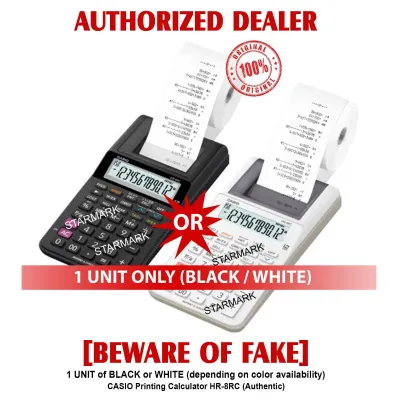
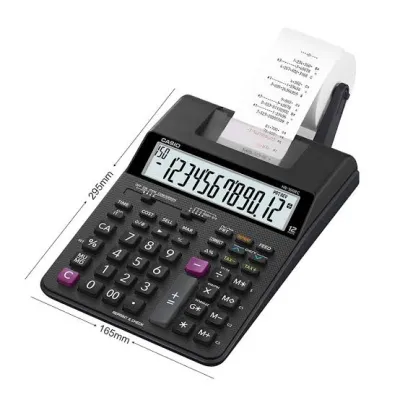
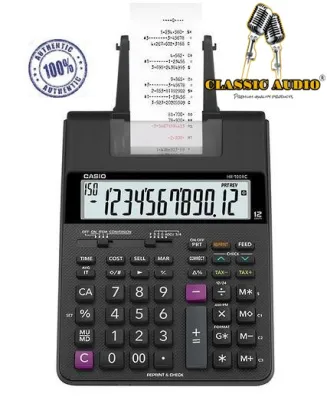
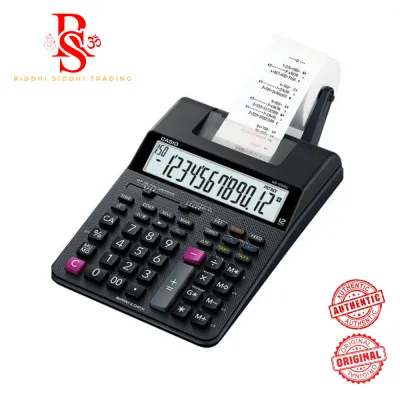
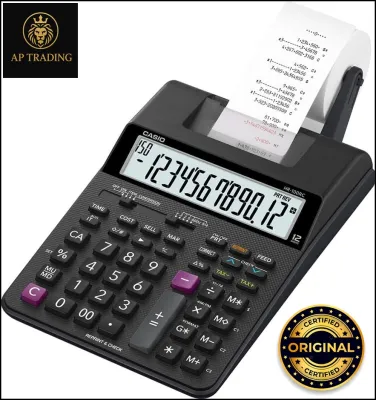
Prices are valid at publication and may change. Please refer to the product page for the latest price.
In the local regulatory landscape, physical audit tapes play a critical role. Many businesses in the Philippines use manual books of accounts registered with the Bureau of Internal Revenue (BIR). For these operations, the physical paper tape printed by a desktop calculator serves as primary supporting evidence for journal entries, helping bookkeepers verify calculations before writing them permanently into ledger books.
Key Specifications to Compare Across CASIO Models
When shopping for a calculator with receipt capabilities, understanding the underlying specifications is key to choosing a model that fits your business environment.
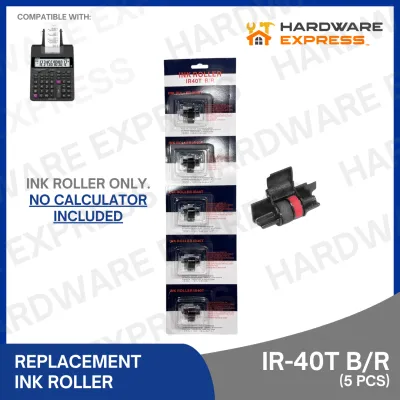
Print Technology and Consumables The choice between ink roller and thermal printing technology significantly impacts both operational costs and the longevity of your printed records. Ink roller models typically utilize two-color printing, using black ink for positive figures and red ink for negative numbers, which makes financial audits and debit-credit distinctions instantly readable. These models print on standard bond paper tape, which is highly durable and resistant to environmental degradation.
Thermal printing models, on the other hand, use heat-sensitive paper to generate text and numbers without the need for ink ribbons or rollers. While this eliminates the cost and hassle of buying replacement ink, thermal printouts are highly sensitive to heat, light, and friction. In a tropical climate like the Philippines, thermal receipts stored in warm filing cabinets or exposed to sunlight can fade over time, making them less suitable for long-term tax archiving unless digitized. Thermal printing is, however, much quieter and faster than impact ink printing.
Paper and Tape Width The physical width of the paper tape dictates how much information can be displayed clearly on a single line. Standard CASIO printing calculators typically use a 58mm paper width, which is the industry standard for commercial receipts and calculation tapes. This width provides ample space for multi-digit figures, tax indicators, and clear mathematical symbols. When comparing models, verify the maximum roll diameter supported by the paper holder, as larger paper rolls reduce the frequency of paper changes but require more physical clearance behind the machine.
Print Speed (Lines per Second) Print speed is measured in lines per second (LPS) and is a critical metric for productivity during fast-paced data entry. Light-duty models may print at speeds around 1.5 to 2.0 LPS, which is perfectly adequate for occasional calculations or small retail transactions. Heavy-duty professional models can exceed 4.0 or 4.5 LPS, allowing the paper tape to feed almost instantaneously as you type. If your workflow involves long columns of figures during month-end financial closings, a higher LPS prevents the machine’s mechanical printing speed from bottlenecking your manual entry speed.
Power Supply and Voltage Compatibility Power delivery is a crucial consideration for commercial electronics used in the Philippines. CASIO printing calculators are available in battery-operated, AC-powered, or dual-power configurations. For stationary office desks, an AC-powered model is preferred to avoid the ongoing cost of battery replacements.
Before plugging any AC-powered calculator into a wall outlet, you must inspect the manufacturer’s label on the AC adapter or the bottom of the device to verify compatibility with the local power grid, which operates at 220V and 60Hz. Many imported models are designed for 110V grids and will suffer immediate, irreversible internal damage if connected directly to a Philippine outlet without a step-down transformer.
Key Layout, Key Roll-over, and Display The physical interface of the calculator directly influences typing speed and accuracy. Look for models featuring a large, angled liquid crystal display (LCD) that minimizes glare from overhead office lighting. Tactile, color-coded keys with a spacious layout prevent accidental double-presses. Professional-grade CASIO calculators often feature key roll-over capabilities, which ensure that your rapid keystrokes are registered in the correct sequence even if you press the next key before fully releasing the previous one.
Match the Calculator to Your Daily Transaction Volume
To make an efficient purchasing decision, you should categorize your business operations by daily workload and physical environment. This ensures you do not overspend on heavy-duty hardware you do not need, nor wear out a light-duty model prematurely.

Choose Light-Duty / Thermal Models if:
- Your business processes a relatively low volume of daily transactions or occasional calculations.
- Your counter space is highly constrained, such as in a small boutique, a kiosk, or a home office.
- You prefer a quiet working environment and want to avoid the recurring maintenance of replacing ink rollers.
- Operational Fit: These compact models are excellent for quick tax calculations, cost-sell-margin analysis, and immediate customer receipt hand-offs where long-term archival durability of the physical paper is not a primary concern.
Choose Standard Two-Color Ink Models if:
- You manage moderate daily bookkeeping tasks, such as daily sales reconciliations, inventory audits, or basic payroll calculations.
- You require clear visual distinctions between positive and negative numbers, utilizing red ink to highlight debits, losses, or deductions.
- Your office requires standard paper records that will remain legible in physical files for several years without fading.
- Operational Fit: This tier represents the classic office printing calculator, offering a balanced footprint, reliable key feedback, and standard paper roll compatibility suitable for general retail management and small-to-medium enterprise (SME) accounting.
Choose Heavy-Duty / High-Speed Models if:
- Your primary workflow consists of continuous, high-volume accounting, professional auditing, or bulk financial data entry.
- You require maximum mechanical durability, rapid print speeds (above 4.0 LPS), and heavy-duty keys designed to withstand millions of keystrokes.
- You regularly perform complex calculations involving multi-currency conversions, tax calculations, and extensive grand totals.
- Operational Fit: These large-format desktop units are built for corporate accounting departments, wholesale distributors, and financial institutions where speed, structural durability, and absolute precision are paramount.
When a Printing Calculator May Not Fit Your Needs While a CASIO printing calculator is an exceptional tool for manual calculations and physical audit trails, it is not a replacement for a modern Point of Sale (POS) system. If your business requires real-time inventory tracking, automatic stock level alerts, customer relationship management (CRM) databases, or direct integrations with barcode scanners and electronic cash drawers, you should invest in a dedicated digital POS terminal or smart register. A standalone printing calculator cannot sync data to the cloud or update inventory logs automatically.
Setup and Maintenance for Tropical Business Environments
Operating electronic office equipment in a tropical climate like the Philippines introduces specific environmental challenges, including high humidity, ambient heat, and fluctuating power conditions. Proper setup and regular maintenance will extend the operational lifespan of your CASIO printing calculator.
Power Verification and Safety Before connecting your calculator to a power source, always read the electrical specifications printed on the device’s rating label or AC adapter. Ensure it explicitly states compatibility with 220V AC at 60Hz. If you have obtained an imported model rated for 110V, you must connect it to a high-quality step-down transformer before plugging it into a Philippine wall outlet. Using an incompatible voltage can cause overheating, short circuits, or permanent component failure.
Consumable Storage in Humid Climates High relative humidity can severely degrade both paper rolls and ink consumables. Thermal paper is particularly vulnerable; moisture and heat can cause the paper to curl, stick together, or lose its heat-sensitive properties, resulting in faint or illegible prints.
- Store spare paper rolls (both standard bond and thermal) in their original packaging inside a cool, dry cabinet or plastic storage container.
- Keep silica gel packets inside your paper storage bins to absorb excess ambient moisture.
- Avoid storing ink ribbons or rollers in direct sunlight or near heat-producing appliances, as dry heat will cause the ink carriers to dry out prematurely, leading to faint printing.
Routine Cleaning and Dust Removal Paper dust naturally accumulates inside the paper path and around the print head assembly over time. This dust can mix with ambient moisture and ink residue, forming a sticky paste that clogs the mechanical gears or stains the print wheel.
- Turn off and unplug the calculator from the power outlet before performing any cleaning.
- Open the paper compartment cover and remove the paper roll.
- Use a soft, dry brush or a clean, lint-free microfiber cloth to gently sweep away paper dust, lint, and debris from the paper feed mechanism and the print head area.
- Never apply liquid solvents, water, alcohol, or aerosol spray cleaners directly to the internal printing mechanism, as these can strip away factory lubricants or damage sensitive electronic components.
Troubleshooting Paper Jams Safely If a paper jam occurs, resolving it incorrectly can strip the internal plastic gears or bend the feeding pins.
- Immediately turn off the power switch to stop the motor from straining against the jam.
- Do not pull the paper backward through the feed mechanism with force, as this can damage the print head and paper-advance gears.
- If the model has a manual feed wheel or a paper release lever, use it to gently ease the stuck paper forward in the normal direction of travel.
- Cut the wrinkled or torn portion of the paper tape cleanly with scissors, then re-feed a fresh, straight edge of paper into the mechanism according to the manufacturer's instructions.
Frequently Asked Questions (FAQ)
Can I use standard POS thermal paper rolls in a CASIO printing calculator?
You should not assume that standard POS thermal paper rolls are universally compatible with your CASIO printing calculator. While many POS rolls share a similar 58mm width, they often feature significantly larger outer diameters and thicker paper stock than what a compact calculator’s paper holder can accommodate. Additionally, some calculators require standard bond paper for ink rollers rather than thermal paper. Always consult your specific CASIO model’s user manual to verify the exact paper width, paper type (thermal vs. bond), roll core requirements, and maximum roll diameter to prevent mechanical paper jams or feed errors.
Do CASIO printing calculators connect to computers or cash drawers?
Standard CASIO printing calculators are designed as fully standalone, offline mathematical tools. They do not possess USB ports, Bluetooth connectivity, or serial interfaces to communicate with personal computers, external software, or cash drawers. Their primary function is to perform localized arithmetic calculations and output a physical paper tape for immediate auditing or manual record-keeping. If your business operations require automated cash drawer triggers, digital transaction logging, or PC-based inventory synchronization, you should look into dedicated POS systems, cash registers, or computer-compatible receipt printers.
Community discussion
Share your experience or ask a question. Comments are reviewed before publication.