
Selecting the right big-screen calculator for a retail store in the Philippines requires balancing immediate readability, tactile reliability, and resistance to environmental factors like high humidity and dust. In a busy retail environment, a cashier or store owner cannot afford to squint at a faded display or double-check whether a keypress actually registered. A high-visibility screen prevents costly transaction errors, while a robust, responsive keypad ensures smooth customer checkout during peak hours. By focusing on specific design elements and functional keys, you can find a desktop calculator that serves as a reliable partner at your cash wrap or counter.
Core Functions for Daily Retail Transactions
Daily store operations demand more than just basic arithmetic. While any standard calculator can handle simple addition and subtraction, a dedicated retail calculator streamlines workflows by reducing the number of keystrokes required for common business calculations. For instance, calculating the 12% Value-Added Tax (VAT) manually involves multiplying a subtotal by 1.12 or 0.12, which introduces opportunities for input errors during fast-paced transactions. Calculators equipped with dedicated tax keys allow users to program a local tax rate directly into the device memory, enabling one-touch tax additions or deductions that save valuable time at the counter.
Beyond tax calculations, memory functions and grand total tracking are essential for end-of-day sales reconciliation. The Grand Total (GT) key automatically accumulates the results of multiple separate calculations into a single memory register. When a cashier totals individual customer receipts throughout the day or aggregates different product categories during inventory checks, the GT function eliminates the need to manually write down intermediate sums or re-enter figures. Standard memory keys (M+, M-, MR, and MC) complement this by allowing operators to temporarily store specific values, such as a standard delivery fee or a recurring discount rate, and apply them across multiple transactions without disrupting the active calculation.
Products mentioned in this guide
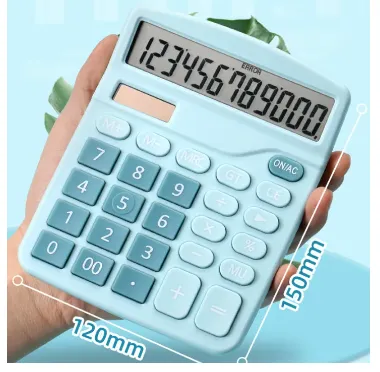
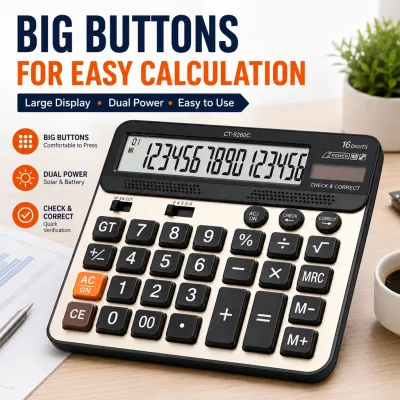
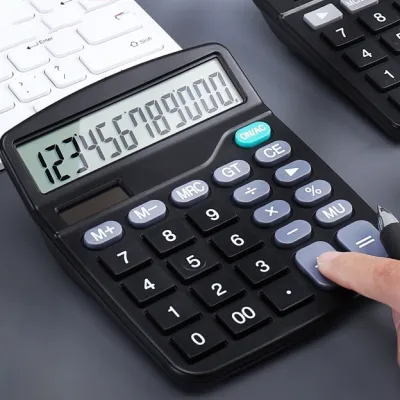
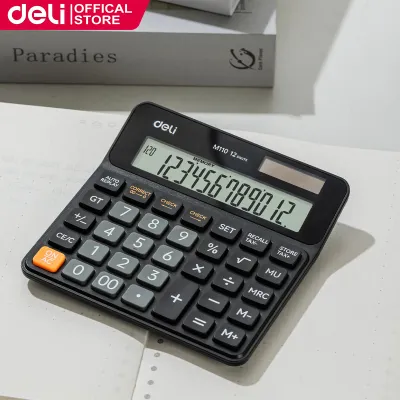
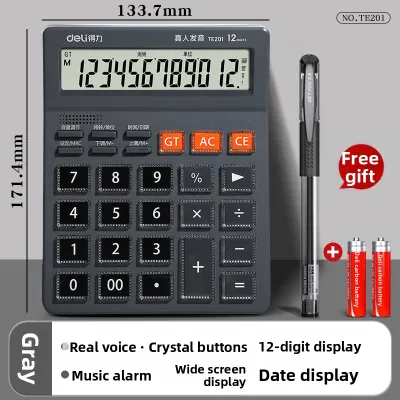
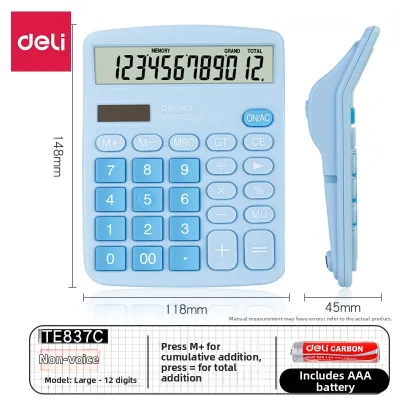
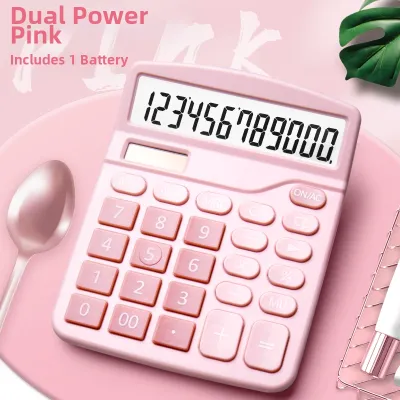
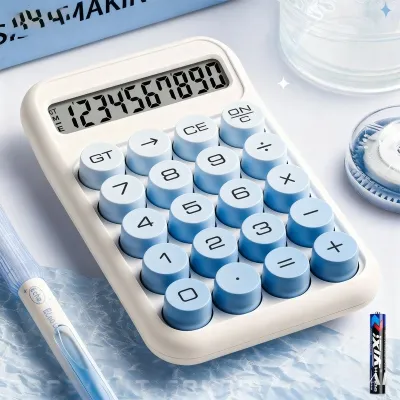
Prices are valid at publication and may change. Please refer to the product page for the latest price.
Pricing adjustments and margin calculations also require specialized keys to maintain profitability on the sales floor. Cost, sell, and margin keys allow store owners to input any two variables to automatically calculate the third. For example, if you know the wholesale cost of an item and your target profit margin, pressing the margin keys instantly reveals the required retail selling price. Similarly, the markup (MU) key simplifies the process of calculating percentage markups and selling prices in a single step. This function is particularly useful in retail environments where wholesale prices fluctuate frequently, requiring quick, on-the-spot pricing updates before items are placed on shelves.
Display Readability and Ergonomic Keypads
A calculator’s display is the primary interface between the machine and the operator, making screen readability a critical factor in reducing transaction errors. For most retail stores, a 12-digit display is the standard choice, as it comfortably accommodates transaction totals up to ₱999,999,999.99. This capacity easily handles daily sales volumes, bulk wholesale orders, and inventory valuations. For larger wholesale distributors or businesses dealing in high-value machinery and electronics, a 14-digit display provides additional headroom, ensuring that long numbers are not truncated or forced into scientific notation during complex calculations.

Overhead lighting in retail spaces, such as bright fluorescent tubes or direct sunlight in open-front stores, can create severe glare on flat liquid crystal displays (LCDs). To combat this, look for calculators that feature an adjustable or permanently tilted screen. An angled display allows the cashier to read the numbers clearly from a natural seated or standing position without needing to bend over the counter or pick up the device. High-contrast screens with large, thick digits further enhance visibility, ensuring that even staff members with mild visual impairments can operate the calculator confidently under varying light conditions.
The physical design of the keypad directly influences input speed and accuracy over long shifts. Large, well-spaced keys are essential for preventing accidental double-presses, especially when cashiers are working quickly to clear a long queue of customers. Tactile feedback is another crucial element; keys should offer a distinct, springy resistance and a reassuring physical click when fully depressed. This physical confirmation allows experienced operators to enter figures rapidly by touch alone, keeping their eyes focused on the customer or the physical merchandise rather than constantly checking the screen to verify each keystroke.
Color-coded and textured keys play a vital role in guiding the operator’s hands during high-volume transactions. Manufacturers often use high-contrast color schemes to separate different functional zones on the keypad. For example, number keys are typically rendered in neutral grey or black, while essential operational keys like the clear (C/AC), equal (=), and tax keys are highlighted in bright orange, blue, or green. This visual segmentation allows the cashier’s peripheral vision to locate critical functions instantly, minimizing the cognitive load of repetitive calculations and reducing the likelihood of clearing an active transaction by mistake.
Power Reliability and Counter Durability
Power interruptions and fluctuating light levels are common challenges in many retail environments, making power reliability a key consideration for counter equipment. A dual-power system that combines a solar panel with a battery backup is the most reliable configuration for a store calculator. Under normal store lighting, the solar panel powers the device, preserving the internal battery. If the store experiences a brief power outage, or if the calculator is moved to a dimly lit corner to count inventory, the device seamlessly switches to battery power without losing the active calculation or clearing the stored grand total.
The physical environment of a retail counter can be harsh, characterized by airborne dust, high humidity, and the occasional spilled beverage. To withstand these conditions, a store calculator must be constructed from durable, high-impact plastics that resist cracking when accidentally dropped. Some models feature sealed rubber membranes beneath the keys to prevent dust, dirt, and moisture from penetrating the internal circuitry. Smooth, non-porous surfaces are also highly desirable, as they allow staff to quickly wipe down the device with a dry or slightly damp cloth at the end of each shift, keeping the counter area clean and hygienic.
Counter space is often limited, requiring a careful evaluation of the calculator’s physical footprint and stability. The device should be large enough to offer comfortable key spacing, yet compact enough to sit alongside cash drawers, receipt printers, and point-of-sale (POS) terminals without cluttering the workspace. To ensure stability during rapid typing, look for calculators equipped with non-slip rubber feet on the base. These feet grip the countertop surface, preventing the unit from sliding or wobbling when keys are pressed forcefully, which helps maintain a smooth and uninterrupted workflow.
Matching Calculator Profiles to Your Store Type
Different retail formats have unique operational demands, meaning that a calculator suited for a quiet specialty boutique may not be ideal for a fast-paced convenience store. High-volume grocery stores, minimarts, and local sari-sari stores require speed and simplicity above all else. In these environments, cashiers handle rapid successions of basic cash transactions. The ideal calculator profile for this setting features an oversized “+” key, a clear layout with high-contrast digits, and basic tax functions. Durability is paramount here, as the calculator will experience near-continuous use throughout the day.
Specialty retail shops, hardware stores, and appliance centers operate under a different set of requirements. These businesses often deal with variable pricing, volume discounts, and custom quotes that require calculating profit margins on the spot. For these stores, a calculator with dedicated cost-sell-margin keys and a higher digit capacity (such as 14 digits) is highly beneficial. The ability to quickly determine markups and verify margins ensures that sales staff can negotiate discounts with customers while protecting the store’s profitability, all without needing to step away to consult a computer terminal.
Mobile stalls, pop-up shops, and market vendors face unique environmental challenges, including exposure to direct sunlight, wind, and dust in open-air settings. For these vendors, portability, robust battery life, and screen visibility are the top priorities. A compact desktop calculator with a protective flip cover or a highly durable, water-resistant casing is ideal for these conditions. The protective cover shields the keys and screen from dust and light rain when not in use, while a strong dual-power system ensures the device remains operational even in outdoor settings with fluctuating natural light.
Pre-Purchase Verification and Testing Checklist
Before purchasing a big-screen calculator from an office supply store or an online marketplace, it is important to verify its specifications to ensure it meets your store’s operational needs. Start by reading the manufacturer’s product description or packaging labels carefully to confirm the exact digit capacity and power configuration. Ensure the product description explicitly states “dual power” or “solar and battery” to avoid models that rely solely on battery power, which can lead to unexpected downtime during busy business hours.
Warranty terms and return policies are critical indicators of product reliability and manufacturer support. When sourcing equipment for commercial use, look for calculators that come with a clear manufacturer’s warranty or a reliable return policy from a verified seller. This protection is especially important when purchasing multiple units for a larger retail operation. Additionally, check the availability of replacement batteries; choosing a model that uses standard, widely available battery sizes (such as AA, AAA, or common button cells) simplifies long-term maintenance and prevents the device from becoming obsolete when the original battery eventually drains.
If you are purchasing the calculator from a physical retail store, take the opportunity to perform a hands-on test of the display unit. Press every key individually to ensure they depress smoothly without sticking or requiring excessive force. View the screen from various angles and under different lighting conditions to verify that the digits remain sharp and legible without washing out. Finally, place the calculator on a flat surface and apply pressure to the corner keys to ensure the unit remains stable and does not wobble, confirming that the rubber feet are properly aligned and effective.
Frequently Asked Questions (FAQ)
How do I clean a calculator screen and keypad without damaging it?
To clean a retail calculator safely, start by turning off the device or removing the batteries if possible. Use a dry, lint-free microfiber cloth to gently wipe away surface dust and fingerprints from the screen and keypad. For stubborn grime or sticky residues left by tape or dirty hands, slightly dampen the microfiber cloth with water or a mild, diluted dish soap solution. Never spray water or cleaning liquids directly onto the calculator, as moisture can easily seep into the gaps between the keys or the edges of the screen, causing permanent damage to the internal electronic components. Avoid using harsh chemical solvents, alcohol, or abrasive scrubbing pads, which can degrade the plastic casing, scratch the LCD screen, or wear away the printed numbers on the keys.
What is the difference between a printing calculator and a standard big-screen desktop model?
The primary difference lies in how calculations are recorded and verified. A standard big-screen desktop calculator displays the active calculation and final results on a digital screen, requiring the operator to write down or manually enter the figures into another system. A printing calculator, on the other hand, features a built-in thermal or ink-ribbon printing mechanism that records every keystroke and calculation step onto a physical roll of paper. Printing calculators are highly beneficial for complex, multi-step accounting tasks, detailed audits, or verifying long addition chains where a physical paper trail is required for record-keeping. However, they are significantly larger, noisier, and require ongoing purchases of paper rolls and ink ribbons, making them less practical for standard, fast-paced retail counters where space is limited and immediate digital visibility is the primary requirement.
Community discussion
Share your experience or ask a question. Comments are reviewed before publication.