
When managing high-volume transactions, audit trails, or daily inventory, a calculator with receipt paper serves as an indispensable desktop tool. Unlike standard digital calculators, these devices provide an immediate, physical audit trail that is critical for accounting, auditing, and tax verification. Selecting the right model requires looking beyond the basic keypad to evaluate technical specifications like print speed, paper roll dimensions, digit capacity, and specialized business functions. By matching these key specifications to your specific daily workflow, you can avoid costly operational bottlenecks and ensure your records remain legible for years to come.
Print Speed and Mechanism: Matching Your Daily Workflow
Print speed is measured in lines per second (LPS). High-speed models (around 3.0 to 4.5 LPS) are vital for high-volume end-of-month accounting and rapid data entry, while lower speeds (1.5 to 2.0 LPS) generally suffice for occasional retail checkout or small-office bookkeeping. Choosing a speed that matches your typical working pace prevents the hardware from lagging behind your keystrokes.
The two primary printing mechanisms are ink roller and thermal printing. Ink roller models use standard woodfree paper and a physical ribbon or roller to transfer ink, allowing for dual-color printing (typically black and red) to highlight negative balances. Thermal printing models use heat-sensitive paper and require no ink replacements, but they only print in a single color.
Products mentioned in this guide
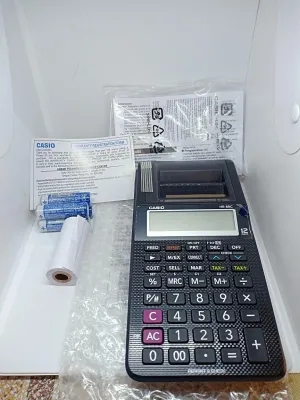
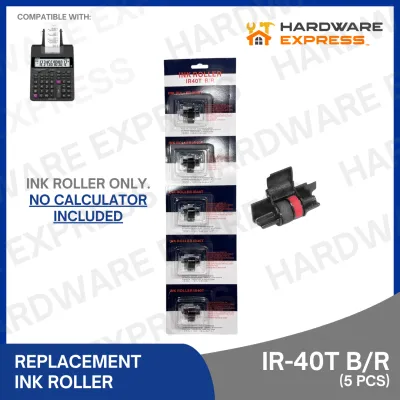
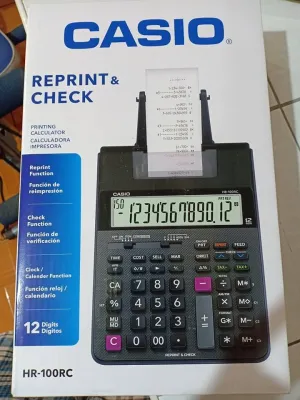
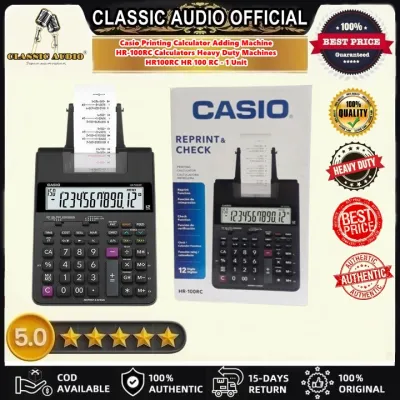
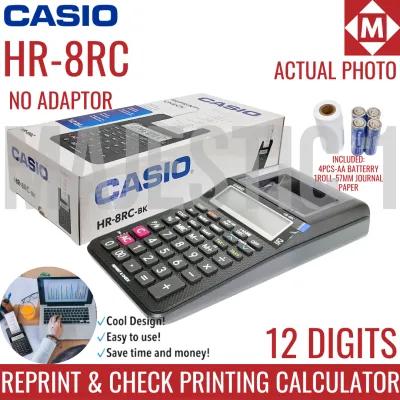
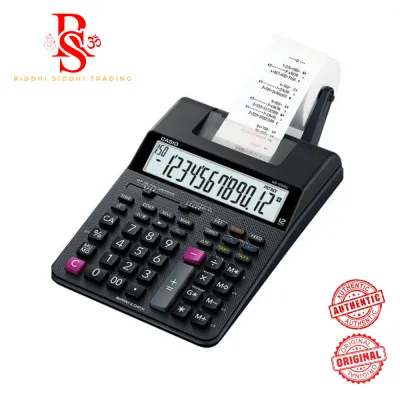
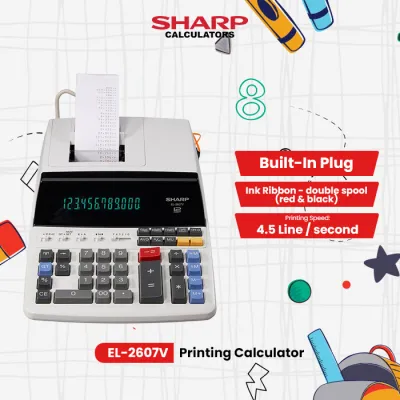
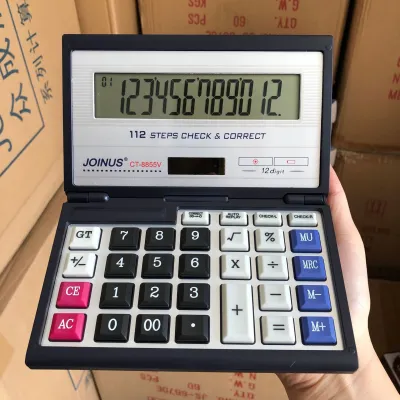
Prices are valid at publication and may change. Please refer to the product page for the latest price.
Tropical climates require careful consideration when choosing a printing mechanism. The high heat and humidity in the Philippines can cause thermal paper to degrade, fade, or turn completely black if stored poorly. For long-term audit compliance where receipts must be archived for several years, ink-roller prints on standard woodfree paper offer superior environmental stability. If you select a thermal model, you must store the printed rolls in a cool, dry place away from direct sunlight and moisture to preserve legibility.
Always verify the exact consumable model recommended by the manufacturer before purchasing. Checking the availability of specific ink roller codes or paper roll types in local office supply stores ensures long-term cost-efficiency and prevents downtime when supplies run low.
Paper Roll Width and Capacity: Preventing Frequent Reloads
Standard paper roll width is typically 57mm (or 2 1/4 inches). Using an incompatible width will cause feeding errors, paper jams, or mechanical strain on the feed motor. Always check the calculator’s specifications to ensure it accepts standard, widely available roll sizes rather than proprietary dimensions.

Roll diameter and capacity dictate how often you must stop work to reload the paper. A larger maximum supported roll diameter allows for longer continuous printing sessions, which is highly beneficial during busy tax seasons or daily cash register reconciliations.
Exceeding the manufacturer’s specified maximum roll diameter can strain the paper feed mechanism. This strain leads to paper jams, uneven line spacing, or premature motor failure. Always verify the physical clearance of the paper holder before installing a new roll.
Paper thickness also affects the total length of paper that can fit inside the calculator’s housing. Thermal paper is generally thinner than standard woodfree bond paper, meaning a thermal roll of the same outer diameter will contain more total meters of paper, reducing the frequency of roll changes.
Display and Print Digits: Avoiding Truncation Errors
It is important to differentiate between display digits on the LCD screen and print digits on the receipt roll. While they are usually identical, some budget models might truncate printed figures if they exceed the printing head’s physical limit. Verify both specifications match to ensure your printed audits are complete.
Standard digit capacities range from 10 to 14 digits. A 10-digit model is suitable for basic retail transactions. However, for corporate accounting, real estate transactions, or large-scale inventory management where totals easily cross into billions of pesos, a 12-digit or 14-digit model is mandatory to handle large financial figures.
Using a calculator with insufficient digit capacity risks overflow errors, typically indicated by an “E” on the display, and truncated results. These errors can ruin hours of cumulative calculations and lead to serious financial discrepancies on your physical audit trail.
Ensure the display includes a clear thousands comma separator. This simple visual aid dramatically reduces reading errors during rapid, high-speed data entry and helps you verify figures at a glance.
Memory, Tax, and Margin Functions: Speeding Up Business Math
Independent memory keys (M+, M-, MRC) allow you to store and manipulate running subtotals without writing them down. Look for models with independent memory registers if you frequently calculate complex, multi-step financial distributions or need to track multiple categories simultaneously.
Dedicated Tax keys are essential for calculating local taxes, such as the standard 12% Value-Added Tax (VAT) in the Philippines. Ensure the calculator allows you to program and store custom tax rates so you can quickly apply or strip VAT from transactions with a single keystroke.
Cost/Sell/Margin (CSM) or Markup (MU) keys simplify retail pricing and profit analysis. Instead of running multi-step percentage formulas, these keys let you input any two variables to instantly calculate the required selling price or profit margin and print the breakdown.
A “Check & Correct” key allows you to review and edit previous steps on the display before committing them to print. This feature saves significant amounts of receipt paper by letting you catch typos before they are permanently printed on the roll.
Power and Build: Ensuring Stability on Your Desk
Power supply options include AC-only, battery-only, or dual-power (AC adapter with battery backup). For a primary desktop unit, an AC adapter is crucial for consistent print head performance, while a battery backup ensures your programmed tax rates and running memory are not wiped out during brief power fluctuations.
Physical stability is vital for rapid entry. A heavy, weighted base with non-slip rubber feet prevents the calculator from sliding across your desk during aggressive keying. A tilted or adjustable LCD display minimizes neck strain and glare under bright office lighting.
Key switch design and tactile feedback are critical for comfort. Look for durable, plastic keys with deep travel and clear tactile feedback to minimize finger fatigue and input errors over long working hours.
Frequently Asked Questions (FAQ)
Can I use any thermal receipt paper in a thermal printing calculator?
No. While many thermal rolls share standard widths like 57mm, you must verify that the paper thickness and roll diameter fit within the calculator’s physical compartment. Additionally, high-quality thermal paper with a uniform chemical coating is required to prevent premature print head wear and ensure the printed text remains legible over time. Using low-quality, abrasive, or overly thick paper can cause frequent jams and scratch the sensitive thermal print head.
Are printing calculators compatible with modern POS or computer systems?
Generally, no. The vast majority of standard printing calculators are designed as standalone, offline desktop tools for independent physical record-keeping. They do not feature USB, Bluetooth, or direct POS integration. If your workflow requires digital data export or direct synchronization with accounting software, you will need to look for specialized hybrid POS terminals or smart cash registers rather than a traditional printing desktop calculator.
Community discussion
Share your experience or ask a question. Comments are reviewed before publication.