
Selecting the best printing calculator for business use in the Philippines requires matching the device’s physical durability, print mechanism, and software capabilities to your daily transaction volume. A high-volume retail counter or busy accounting office needs a heavy-duty desktop model with a fast ink-ribbon printer, while a smaller boutique or home-based business might benefit more from a compact, quiet thermal printing calculator. To make the right choice, you must evaluate how the machine handles continuous calculations, how easily you can source its specific paper and ink refills locally, and how its display and keyboard layout accommodate long hours of data entry.
Evaluating Display and Print Hardware for Daily Use
When selecting a printing calculator, the display is your primary interface. Business environments require clear, legible screens to prevent costly input errors. Most professional calculators feature either a Liquid Crystal Display (LCD) or a Vacuum Fluorescent Display (VFD). VFD screens, often recognizable by their bright green or blue-green illuminated digits, offer exceptional visibility in low-light conditions and wide viewing angles, making them ideal for busy retail counters. However, they require a direct AC power connection. LCD screens are highly energy-efficient and common in portable models, though they rely heavily on ambient office lighting.
Digit capacity is another critical hardware specification. A standard 12-digit display is sufficient for most small-to-medium enterprises, accommodating calculations up to hundreds of billions of pesos. For corporate accounting or financial institutions handling larger figures, a 14-digit model provides the necessary headroom. Additionally, look for models with an adjustable display angle, which allows you to tilt the screen to eliminate glare from overhead office lights.
Products mentioned in this guide
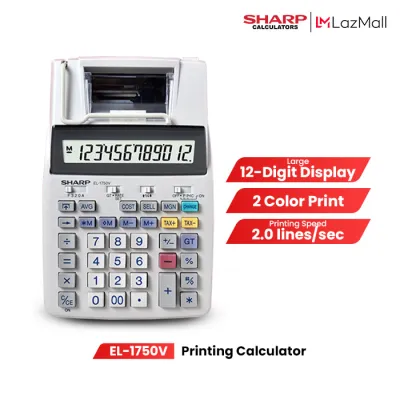
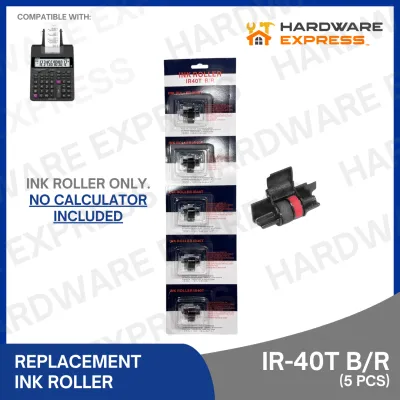
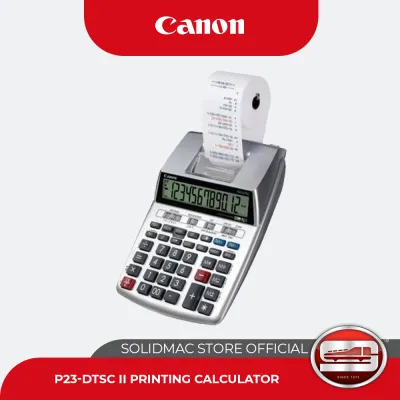
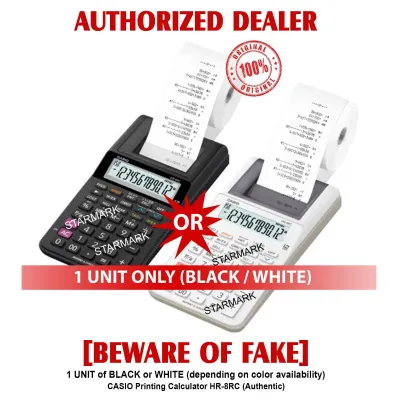
Prices are valid at publication and may change. Please refer to the product page for the latest price.
The printing mechanism itself is divided into thermal and ink-based systems. Thermal printers use heat-sensitive paper to generate images without ink. This system is exceptionally quiet and eliminates the ongoing cost of ink replacements. However, thermal prints are highly sensitive to heat and light, causing them to fade over time. Ink-based systems use either an ink roller or an ink ribbon to print on standard bond paper. These systems are louder but offer the distinct advantage of two-color printing—typically black for positive numbers and red for negative values or deductions—which is invaluable for rapid visual audits.
Print speed, measured in lines per second (LPS), determines how quickly the machine outputs physical records. Heavy-duty office models typically print at speeds between 3.5 and 4.8 LPS, keeping pace with rapid touch-typists. Entry-level or portable models may print at a slower rate of 1.5 to 2.0 LPS. Ensure the calculator uses standard paper roll widths, with 57mm (2.25 inches) being the industry standard, to guarantee you can easily find replacement paper rolls in local office supply stores.
Essential Commercial Functions for Daily Accounting
A business calculator must do more than basic arithmetic; it must streamline daily financial workflows. The inclusion of dedicated Cost, Sell, and Margin (CSM) keys is a primary requirement for retail and wholesale operations. These keys allow you to input any two variables to automatically calculate the third. For instance, entering a cost of ₱150 and a target margin of 20% instantly reveals the required selling price, saving valuable time during inventory pricing.

Tax calculation keys are equally vital for compliance and daily invoicing. In the Philippines, businesses must regularly calculate the 12% Value-Added Tax (VAT). A quality printing calculator allows you to program this specific tax rate into the memory. Once set, pressing the “TAX+” key automatically adds the 12% VAT to the subtotal and prints the tax amount as a separate line item, while the “TAX-” key strips the tax away to reveal the base price. This feature ensures consistency and speed during end-of-day sales reconciliations.
For comprehensive bookkeeping, look for a grand total (GT) key and an item counter. The grand total function automatically accumulates the results of multiple independent calculations, which is essential when totaling invoices for different clients. The item counter tracks the number of entries made, allowing you to cross-check the physical number of items on a receipt against the printed calculator tape to identify missing entries.
Advanced models also feature currency conversion keys, decimal selectors, and rounding switches. The decimal selector allows you to lock the decimal point to a specific position, such as “2” for standard centavo transactions, or use “A” (Add mode) to automatically insert the decimal point two places from the right as you type. Rounding switches let you choose whether the calculator rounds up, rounds down, or uses standard mathematical rounding (5/4) for fractional values, ensuring your calculations align perfectly with your company’s accounting policies.
Matching Calculator Size and Print Type to Your Workflow
Choosing between a heavy-duty desktop printing calculator and a compact, portable model depends on your physical workspace and daily transaction volume. High-volume environments, such as supermarket back offices, wholesale distribution centers, and dedicated accounting firms, require heavy-duty desktop units. These machines are built with durable, full-sized plastic keys that feature double-injection molding, meaning the numbers are molded into the key itself and will not wear off after years of heavy use. These models have a larger footprint, a weighted base to prevent sliding, and are powered exclusively by AC outlets.
Conversely, space-constrained desks, temporary bazaar stalls, or mobile sales agents require a compact or portable printing calculator. These smaller units occupy minimal desk space and often feature dual power options, running on both batteries and a plug-in AC adapter. While they offer the same core mathematical functions, they typically have smaller, rubberized keys and slower print speeds. They are best suited for light-to-medium daily use where portability and desk space are prioritized over rapid, continuous typing.
The tropical climate of the Philippines introduces unique environmental factors when choosing between thermal and ink-based printing. High humidity and ambient heat accelerate the degradation of thermal paper. If you store thermal receipts in a warm drawer or a hot delivery vehicle, the print can fade to complete illegibility within a few months. For businesses required to archive physical financial records for tax audits, ink-based printing on standard bond paper is the superior choice. The ink bonds permanently to the paper fibers, ensuring the printed record remains legible for years, even in humid storage conditions.
Pre-Purchase Compatibility and Maintenance Checklist
Before finalizing your purchase, verify that the calculator’s consumables are readily available in your local area. Check nearby office supply stores or trusted online marketplaces for the specific ink roller or ribbon model your calculator requires. Standard 57mm paper rolls are widely available, but ensuring a steady supply of the correct ink model is crucial to avoid operational downtime.
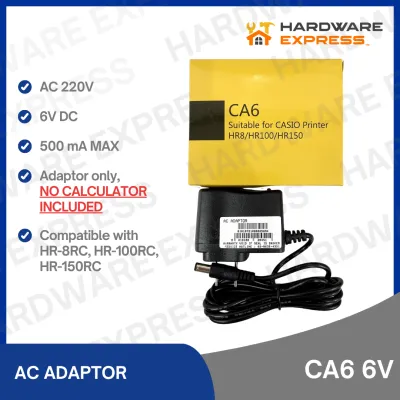
Next, measure your designated workspace and check the proximity of power outlets. Heavy-duty models require a dedicated AC outlet, so ensure the cord can reach safely without creating a tripping hazard. If you opt for a portable model, verify whether the AC adapter is included in the box or must be purchased separately, as relying solely on battery power can become expensive over time.
Regular maintenance is essential to keep your printing calculator operating smoothly. Paper lint and dust naturally accumulate inside the printing compartment over time, which can cause paper jams or faint printing. Periodically open the paper compartment and use a can of compressed air or a soft, dry brush to remove accumulated debris. For ink-ribbon models, avoid touching the ribbon directly with your fingers, as natural skin oils can transfer to the fabric and affect print quality. If the paper feed mechanism begins to slip, gently clean the rubber platen roller with a lint-free cloth slightly dampened with isopropyl alcohol, ensuring it is completely dry before reloading paper.
Frequently Asked Questions (FAQ)
Can I use standard receipt paper in a printing calculator?
You must match the paper type to your calculator’s specific printing technology. Thermal printing calculators require heat-sensitive thermal paper, which reacts to the print head’s heat to create text. If you load standard bond paper into a thermal calculator, it will not print anything because there is no ink. Conversely, ink-based calculators require standard bond paper. While thermal paper can technically pass through an ink-based calculator, the ink may smudge on the slick thermal coating, and thermal paper is significantly more expensive than standard bond paper. Always verify the required roll width (typically 57mm) and the maximum outer roll diameter that your calculator’s paper arm can support.
How often should I replace the ink roller or ribbon?
The replacement frequency depends entirely on your daily printing volume and environmental conditions. You should replace the ink roller or ribbon as soon as you observe faint, streaky, or uneven print quality, particularly when the red ink becomes difficult to distinguish from the black. In the humid tropical climate of the Philippines, ink rollers left unused for extended periods can dry out and harden, leading to poor ink transfer even if the calculator has not been heavily used. For optimal legibility and audit compliance, it is best to replace the ink consumable at the first sign of fading or at least once a year for moderate-use office environments.
Community discussion
Share your experience or ask a question. Comments are reviewed before publication.