
Selecting the right certificate paper is the key to producing professional, elegant awards that do not jam your printer or suffer from messy ink smudges. To make the correct choice, you must balance the physical capabilities of your printer—specifically its maximum paper weight capacity and feed mechanism—with the chemical compatibility of the paper’s surface coating. Whether you are preparing diplomas for a graduation ceremony, appreciation awards for corporate seminars, or recognition plaques for local community events, matching your paper to your specific printer technology ensures crisp text and vibrant borders every time.
Using the wrong type of paper can lead to costly mistakes, wasted materials, and potential damage to your office equipment. Inkjet and laser printers use fundamentally different methods to apply text and images to a page, meaning a sheet of paper that works beautifully in one machine might fail completely in another. By understanding how paper weight, surface finish, and size interact with your printer, you can confidently select the ideal media for your next printing project.
Understand Your Printer's Paper Weight and Thickness Limits
Before purchasing any specialty certificate paper, you must determine the maximum paper weight your printer can safely handle. Paper weight is typically measured in grams per square meter (GSM) or pounds (lbs). Standard everyday office copier paper usually ranges between 70 GSM and 80 GSM, which is thin and highly flexible. In contrast, premium certificate paper, cardstock, and parchment paper are much thicker, often ranging from 120 GSM to 220 GSM or more to provide a substantial, high-quality feel.
Products mentioned in this guide
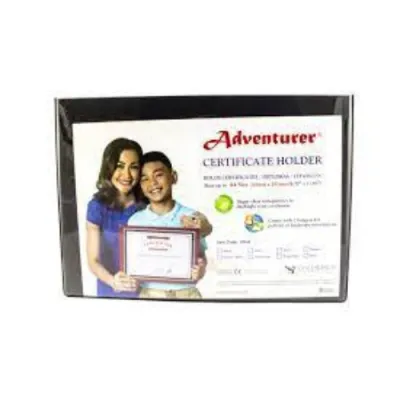
684 Lazada user ratings
items are good quality and everything was shipped fast, everything was packaged great as well :)) products also look like photos
Great for diplomas and certificates, Enhances the presentation, Smooth texture for writing, Perfect for awards and invitations,
Professional-looking design, Perfect for awards and invitations, Versatile for various occasions, Perfect for special events,
Quality:maganda Ease of Use: Appearance:ok ok po sya gamiting maganda klase sukit pera ayos na ayos mapapawow ka
Delivered on 2nd day upon ordering. Very fast shipping! Thankyou!
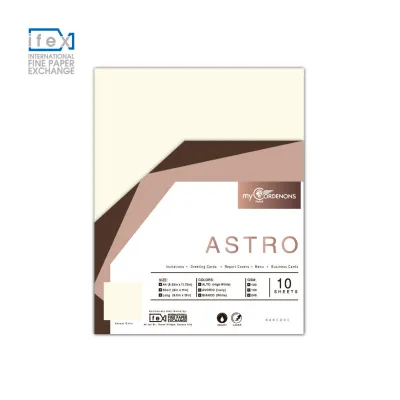
77 Lazada user ratings
Quality:good Size:a4 Design:good Price:affordable Sigurista si seller mag pack po! double bubble wrap labas, tas naka cardboard box, tas sa …Read full reviewShow less
Quality:good Size:a4 Design:good Price:affordable Sigurista si seller mag pack po! double bubble wrap labas, tas naka cardboard box, tas sa loob bubble wrap pa ulit. ayos! siguradong di malulukot. Salamat po seller 👌
Professional business card material, Excellent light-fastness, Perfect for creative projects, Perfect for report covers,
Great paper quality, Perfect for report covers, Great for menu designs, Excellent light-fastness,
very good quality!
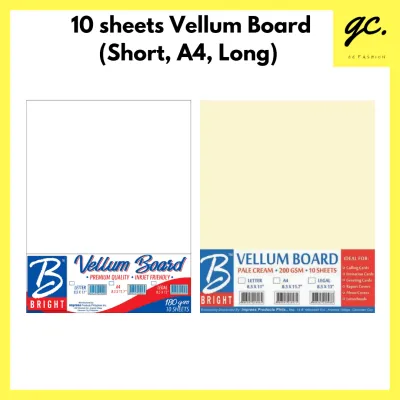
722 Lazada user ratings
Quality: Ease of Use: Appearance: Ok nman kaso lang sana nilagay sa karton ni seller kasi hindi maiiwasan mayupi ng rider lalo toh papel ung…Read full reviewShow less
Quality: Ease of Use: Appearance: Ok nman kaso lang sana nilagay sa karton ni seller kasi hindi maiiwasan mayupi ng rider lalo toh papel ung laman .. minsan pa nman hindi tinatanggap ng printer pag gusot at lalo vellum board pa
Impressive paper texture, Ideal for professional presentations, Enhances the look of photographs,
Just received it after 2 days. A great standard for my paper crafting project! Thank you, seller!
Sturdy and long-lasting, Versatile paper for various uses, Impressive paper texture,
ok lng nmn yung product......................sakto sacpresyo.....................
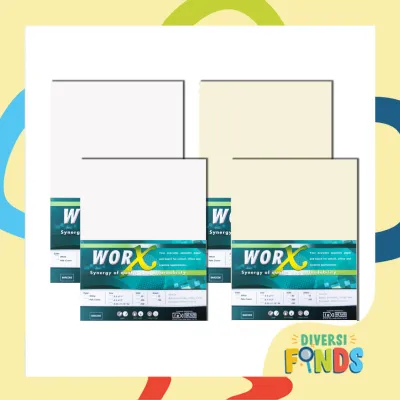
1,315 Lazada user ratings
Excellent product quality! Well packaged and was delivered on time. Will definitely repurchase! Thank you so much! 😍 sorry for putting unrel…Read full reviewShow less
Excellent product quality! Well packaged and was delivered on time. Will definitely repurchase! Thank you so much! 😍 sorry for putting unrelated picture. I’m just saving myself some time 😅
Quality:Good Appearance:GoodPerfect for my creative projects, Excellent for printing and crafting, Great paper quality!, Ideal for special o…Read full reviewShow less
Quality:Good Appearance:GoodPerfect for my creative projects, Excellent for printing and crafting, Great paper quality!, Ideal for special occasions and programs,
Smooth and sturdy paper, Great paper quality!, Impressive color options, Highly recommended for school projects,
Quality:Good Ease of Use:Good Appearance:Good Thin not suitable for card, but it is my fault.
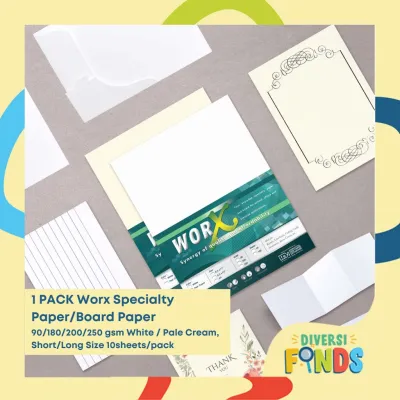
1,132 Lazada user ratings
Sturdy and durable construction, Perfect size for certificates, Pale cream color adds elegance, Impressive thickness for a premium feel, Imp…Read full reviewShow less
Sturdy and durable construction, Perfect size for certificates, Pale cream color adds elegance, Impressive thickness for a premium feel, Impressive thickness for a premium feel, Precise cutting for consistent size, Excellent for calligraphy and lettering, Smooth texture for easy writing,
Smooth surface for easy drawing and sketching, Impressive thickness for a premium feel, so ganda ng texture as in, kung hanap nyo ay makinis…Read full reviewShow less
Smooth surface for easy drawing and sketching, Impressive thickness for a premium feel, so ganda ng texture as in, kung hanap nyo ay makinis at maputi na board paper eto na un
High-quality printing results, Excellent paper quality, Pale cream color adds elegance, Smooth surface for easy drawing and sketching,
Item as well packed, and then not any damage when I receive it in this in a good quality that looks so expensive
Smooth surface for easy drawing and sketching, Enhances the presentation of documents, maganda as in makapal pa
Prices are valid at publication and may change. Please refer to the product page for the latest price.
To find your printer’s specific limits, consult the user manual or look up the model specifications on the manufacturer’s official website. Look for the section labeled ‘Supported Paper Weights’ or ‘Media Specifications.’ This section will outline the maximum GSM supported for different input trays. Many standard home and office printers can easily handle up to 120 GSM through their main paper cassettes, but require the use of a manual feed slot or bypass tray for heavier media up to 200 GSM or higher.
Exceeding your printer’s maximum thickness limit can cause immediate mechanical issues. When paper is too thick or rigid for the internal rollers to grab, it can lead to misfeeds, where the printer fails to pull the sheet at all. If the paper does feed, it may get stuck midway through the printing path, resulting in stubborn paper jams that can tear internal components or wear down the rubber feed rollers prematurely.
The physical path the paper takes through your printer also plays a major role in determining how thick your certificate paper can be. Printers with a curved paper path draw paper from a bottom tray, loop it 180 degrees around internal rollers, and deposit it in a top output tray. This tight bend is highly challenging for stiff, heavy cardstock. If your printer features a straight-through paper path—often accessed via a rear manual feed slot that exits directly out the back or front without bending—it is far better suited for heavy certificate paper, as the sheet remains completely flat during the entire printing process.
Match the Paper Finish to Your Printer Technology
Once you know the weight your printer can handle, you must match the paper’s surface finish to your specific printer technology. Inkjet printers work by spraying tiny droplets of liquid, water-based ink onto the page. To prevent this ink from bleeding, feathering, or smearing, inkjet-compatible certificate papers are treated with a special absorbent coating. This coating quickly draws the liquid into the fibers and locks it in place, ensuring sharp lines and vibrant colors. If you attempt to use non-compatible or heavily coated glossy laser paper in an inkjet printer, the liquid ink will simply sit on the surface, pooling and smudging at the slightest touch.

Laser printers, on the other hand, use static electricity to transfer dry toner powder onto the paper, which is then permanently melted into the fibers using a high-heat fuser unit. Because of this intense heat, laser-compatible certificate papers must be engineered to withstand high temperatures without curling, bubbling, or scorching. Using paper designed exclusively for inkjet printers in a laser printer can be highly risky; the heat of the fuser can melt the inkjet’s specialized chemical coatings, potentially transferring sticky residue onto the fuser rollers and causing permanent damage to your machine.
To avoid these issues, always read the product packaging and descriptions carefully before buying. Manufacturers of quality certificate paper will explicitly state whether a product is ‘Inkjet Compatible,’ ‘Laser Compatible,’ or ‘Dual-Purpose/Universal.’ Dual-purpose papers are specially formulated to accept both liquid ink and dry toner, making them an excellent, versatile choice if you use multiple types of printers in your office or school. If a package does not clearly state its compatibility, it is safest to assume it is intended for standard light-duty writing rather than high-heat laser printing or heavy-ink inkjet printing.
Select the Right Size and Format for Certificates
Choosing the correct physical dimensions and layout format is essential for ensuring your certificates look professional and fit standard frames or folders. In the Philippines, the most common paper sizes available in local office supply stores and online marketplaces are Letter size (8.5 x 11 inches) and A4 size (210 x 297 mm). While these two sizes look similar at a glance, A4 is slightly narrower and longer than Letter. Always verify which size your template or design software is configured for, as printing an A4 design on Letter paper can cut off borders or misalign text.
You must also decide between blank certificate paper and pre-printed border templates. Blank paper, such as classic parchment or textured linen, gives you complete creative freedom to design your own borders, logos, and layout using graphic design software. Pre-printed certificate papers come with elegant, pre-applied borders—often featuring intricate geometric patterns or shiny gold foil accents. While pre-printed sheets save you a significant amount of colored ink or toner, they require precise alignment during the printing process to ensure your text sits perfectly centered within the borders.
When purchasing certificate paper in bulk from local office supply retailers in the Philippines, comparing costs can help you manage your budget effectively. A basic pack of blank parchment paper may cost anywhere from ₱150 to ₱350 depending on the sheet count and brand, making it a highly economical choice for large-scale school graduations or corporate training seminars. Premium sheets featuring genuine foil-stamped borders or heavy linen textures generally cost more per page, but they provide a level of prestige and tactile quality that standard printed borders cannot replicate. Be sure to adjust your printer’s software settings to match the exact dimensions of your chosen paper, especially if you are working with non-standard diploma sizes.
Step-by-Step Guide to Testing and Printing
To avoid wasting expensive certificate paper on misaligned prints or smudged ink, follow this systematic workflow to test and execute your print job safely.
Step 1: Adjust Printer Settings and Physical Guides Open your printer’s paper input tray and slide the physical paper guides so they snugly hug the edges of your certificate paper without bending it. Next, open the print dialog box on your computer. Do not leave the media type set to ‘Plain Paper.’ Instead, change the setting to ‘Heavy Paper,’ ‘Cardstock,’ ‘Parchment,’ or ‘Labels’ depending on your printer driver options. This setting tells the printer to slow down the feeding speed and, in the case of laser printers, adjust the fuser temperature to ensure proper toner adhesion on thicker media.
Step 2: Run a Test Print on Standard Paper Before loading your premium certificate paper, place a sheet of standard, inexpensive copier paper into the tray. Draw a small arrow or write the word ‘Top’ on the upward-facing side of the test sheet. Print a draft version of your certificate. This test run allows you to verify that the text is properly aligned, the margins are correct, and you know exactly which direction the paper feeds through the machine (face-up or face-down).
Step 3: Load the Certificate Paper Correctly Examine your certificate paper to identify the printable side. Many textured papers, such as linen or laid paper, have a distinct, highly textured front side and a smoother back side. In the tropical climate of the Philippines, high humidity can cause paper sheets to cling together due to static and moisture. Gently fan the edges of your certificate paper before loading it into the tray to prevent multiple sheets from feeding at the same time. Load only a few sheets at a time if you are using exceptionally thick cardstock.
Step 4: Execute and Verify the Final Print Send the print job to your printer. Once the certificate emerges, handle it carefully by the edges to avoid touching the freshly printed areas. Inspect the sheet under good lighting. Check for crisp, sharp text, accurate color reproduction, and any signs of smudging or toner flaking. If the print looks perfect, you can proceed with the rest of your batch.
If you hear any unusual grinding noises, or if the printer repeatedly fails to pull the paper, stop the print job immediately. Do not force the machine to continue. Consult your printer’s user manual to verify if you need to use a different feed slot or if the paper weight simply exceeds the machine’s physical limits.
Frequently Asked Questions (FAQ)
Can I use the same certificate paper for both inkjet and laser printers?
It is highly recommended to use paper specifically labeled for your printer type unless the packaging explicitly states it is ‘multi-purpose’ or ‘dual-compatible.’ Inkjet paper relies on absorbent coatings that can melt under the high heat of a laser printer’s fuser, potentially damaging the machine. Conversely, laser paper lacks the absorption qualities needed for liquid ink, which can result in severe smudging and bleeding when printed on an inkjet machine.
How should I store unused certificate paper to prevent curling?
To protect your certificate paper from curling and moisture damage, store it flat in its original resealable plastic packaging. In humid tropical environments like the Philippines, open paper quickly absorbs moisture from the air, which causes the edges to warp and leads to frequent paper jams. Keep the stored paper in a cool, dry cupboard or drawer, completely flat, and away from direct sunlight or damp concrete walls.
What should I do if my printer jams while using thick certificate paper?
If a jam occurs, turn off the printer immediately to prevent damage to the internal motors. Open the printer’s access panels and gently pull the jammed paper out in the natural direction of the paper path; never yank it backward against the rollers, as this can damage delicate sensors or tear the paper, leaving hard-to-reach scraps inside. Once cleared, clean any dust from the feed rollers with a dry, lint-free cloth, and verify that your print settings are set to ‘Heavy’ or ‘Cardstock’ before trying again.
Community discussion
Share your experience or ask a question. Comments are reviewed before publication.