
Matching your printing needs to the right copy paper is the simplest way to prevent frustrating printer jams, messy ink bleeding, and wasted office budgets. While a cheap ream of paper might seem ideal for every task, using thin sheets for a double-sided client proposal or running heavy, coated stock through a basic home printer can ruin both your documents and your equipment. Finding the perfect balance requires looking beyond the price tag to evaluate weight, brightness, and compatibility with your specific printer.
Understanding Paper Weight and Brightness Labels
To make an informed purchase, you must first decode the technical specifications printed on every ream of paper. The most critical metric is GSM, which stands for grams per square meter. This measurement indicates the weight and density of the paper, directly translating to its thickness, stiffness, and overall tactile quality. A higher GSM means a thicker, sturdier sheet that resists bending and feels more substantial in the hand, while a lower GSM indicates a thinner, more flexible sheet.
Another key specification is the brightness rating, typically represented as a number between 80 and 100. This rating measures how much light reflects off the paper’s surface under standard conditions. Higher brightness ratings, such as 96 or above, provide a starker contrast against black ink and make colored graphics appear more vibrant. Lower brightness ratings, around 80 to 90, are softer on the eyes and perfectly adequate for standard text documents.
Products mentioned in this guide
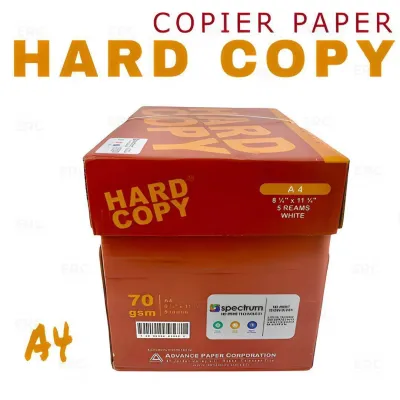
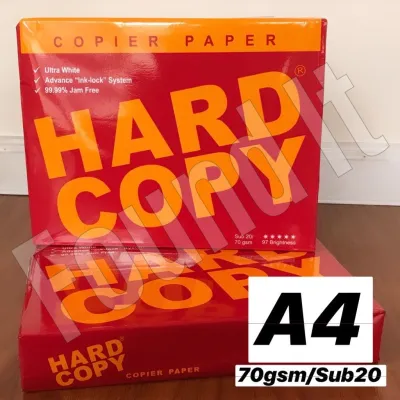
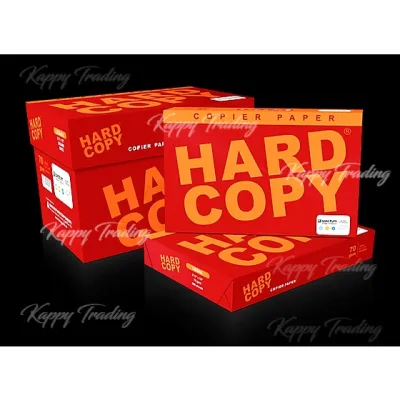
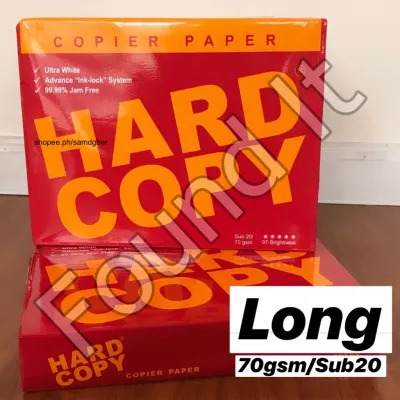
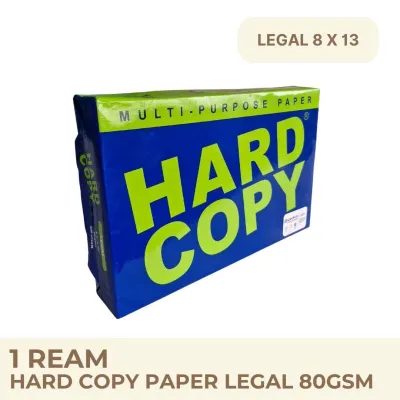
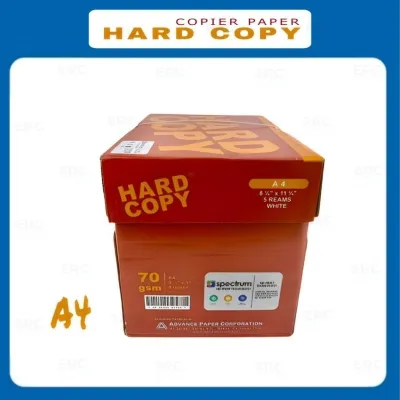
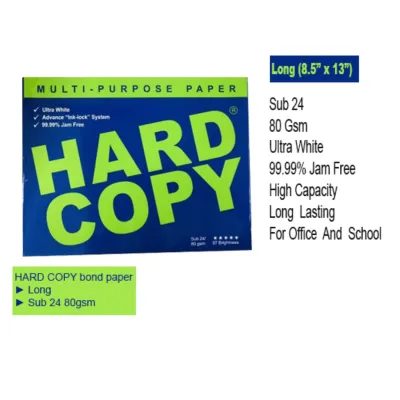
![[5 Reams] Copy Paper Bond Paper - Short / Long / A4 (500 sheets)](https://img.lazcdn.com/g/p/c2621e19607bfd52ecd207c9473e3160.jpg_400x400q80.jpg_.webp)
Prices are valid at publication and may change. Please refer to the product page for the latest price.
Before stocking up on heavy or specialized paper, always consult your printer’s user manual to verify its maximum media weight capacity. Most standard office and home printers handle paper up to a certain GSM limit through their primary paper trays, often requiring you to use a manual bypass tray for heavier cardstock. Exceeding these manufacturer-specified limits can cause severe mechanical strain, leading to roller wear, misfeeds, and persistent paper jams.
Choosing Cost-Effective Paper for Everyday Documents
For high-volume, routine office tasks like printing internal memos, rough drafts, and simple text documents, a budget-friendly utility paper is the most practical choice. The standard weight range for these everyday tasks is 70 GSM to 80 GSM. This range is light enough to keep shipping and purchasing costs low, yet sturdy enough to feed smoothly through high-speed office copiers and desktop printers without tearing.

When selecting everyday paper, opting for a moderate brightness level—typically between 88 and 92—offers an excellent compromise between readability and cost. Because these documents are rarely used for high-stakes client presentations, the slight reduction in contrast compared to premium paper is virtually unnoticeable for standard black-and-white text. This choice allows you to stretch your office budget further while maintaining clean, legible prints.
In tropical climates like the Philippines, proper paper storage is absolutely essential to prevent printing issues. High relative humidity can cause paper to absorb moisture from the air, leading to wavy edges, curling, and sheets sticking together inside the paper tray. To protect your investment, store unopened reams flat in their original moisture-resistant wrappers inside a closed cabinet or drawer. Once a ream is opened, try to load only what you need for immediate use, and store the remaining sheets in a resealable plastic container to keep them dry and dust-free.
Upgrading to Premium Paper for Reports and Proposals
When preparing external reports, contracts, or formal business proposals, the physical feel of the document speaks volumes about your professionalism. Upgrading to a heavier paper weight, specifically between 90 GSM and 100 GSM, immediately elevates the tactile experience. This weight feels noticeably premium, resists creasing during handling, and conveys a sense of importance and attention to detail to your clients or stakeholders.
A primary advantage of premium paper is its superior opacity, which is closely tied to its weight and density. High opacity prevents “show-through”—the distracting shadow of text or images visible from the reverse side of the page. This feature is indispensable for double-sided printing, ensuring that your multi-page reports remain clean, legible, and professional on both sides without any visual clutter.
Additionally, premium papers often feature specialized surface finishes, such as ultra-smooth or satin textures. These finishes are engineered to optimize ink absorption and toner adhesion, resulting in sharper text edges and more uniform solid black areas. When choosing a finish, consider how the paper interacts with your office equipment; a smoother surface allows laser toner to fuse more evenly, reducing the risk of micro-flaking and ensuring your documents look pristine even after heavy handling.
Selecting High-Impact Paper for Presentations and Handouts
Visual-heavy materials like marketing handouts, charts, and presentation slides require specialized paper designed to handle dense color coverage. For these high-impact documents, look for paper weights ranging from 100 GSM to 120 GSM, or even light cardstock if your printer supports it. This extra thickness prevents the paper from buckling or warping under heavy ink saturation, ensuring your colorful graphics lie perfectly flat.
The surface coating of the paper plays a decisive role in color accuracy and image sharpness. Matte coatings offer a glare-free finish that makes text easy to read under bright office lights, while glossy coatings provide maximum color vibrancy and photographic depth. However, you must match these coatings precisely to your printer technology; using glossy paper designed for inkjet printers in a high-heat laser printer can melt the coating, permanently damaging your printer’s fuser unit.
To ensure optimal results before running a large print job, always perform a test print and conduct a thorough visual inspection. Look closely for signs of ink pooling, where the liquid ink fails to absorb and puddles on the surface, or feathering, where the ink bleeds outward along the paper fibers to create fuzzy edges. If you are using a laser printer, rub a finger firmly across solid colored areas to check for toner flaking, which indicates the paper is too thick or smooth for the toner to fuse properly.
Ensuring Printer Compatibility and Preventing Jams
Understanding how different printer technologies interact with paper is key to maintaining your equipment and avoiding frustrating downtime. Laser printers use intense heat and pressure to fuse dry toner powder onto the paper fibers, making them highly compatible with smooth, heat-resistant papers. Inkjet printers, on the other hand, spray liquid ink that must be quickly absorbed and dried by the paper, requiring a surface that can handle moisture without warping or bleeding.
Whenever you switch from standard everyday paper to premium or heavyweight stock, you must adjust your printer’s driver settings on your computer. Most print dialog boxes allow you to select the specific media type, such as “Heavyweight,” “Cardstock,” or “Glossy.” Changing this setting instructs the printer to adjust its feed speed, fuser temperature, or ink volume to match the physical properties of the paper, ensuring optimal print quality and preventing feed errors.
Finally, establish clear stopping conditions to protect your printer from physical damage. If you experience repeated paper jams, notice severe curling of the output sheets, or hear unusual grinding noises from the paper feed rollers, stop printing immediately. These are clear indicators that the paper weight, thickness, or moisture level exceeds your printer’s physical capabilities, and continuing to force the job through could result in costly mechanical repairs.
Frequently Asked Questions (FAQ)
Can I use the same copy printing paper for both inkjet and laser printers?
While basic multipurpose copy paper is formulated to work acceptably in both inkjet and laser printers, specialized papers are not interchangeable. Inkjet-specific paper features a highly absorbent surface coating designed to lock in liquid ink quickly, which can melt or release harmful residues under the high heat of a laser printer’s fuser. Conversely, laser-specific paper is engineered to withstand extreme heat but may lack the absorption qualities needed for inkjet inks, resulting in smudged, slow-drying prints.
Does buying recycled copy paper affect print quality or cause more jams?
Modern, high-quality recycled copy paper performs comparably to virgin paper, but lower-grade options can present challenges. Recycled paper often contains shorter wood fibers, which can release more paper dust inside your printer over time, requiring more frequent roller cleaning to prevent slipping and jams. To ensure reliable performance, look for recycled paper certified to meet standard brightness and opacity levels, and perform a small trial run to verify it feeds smoothly through your specific machine.
Community discussion
Share your experience or ask a question. Comments are reviewed before publication.