
Printing clear overhead transparencies requires matching your printer’s technology with the correct type of transparency film and using precise handling techniques. Standard acetate sheets designed for crafts will not hold printer ink or withstand the high heat of a laser printer. By selecting the correct media settings, feeding the sheets individually, and using a sharp utility knife for trimming, you can produce crisp, professional-grade visual aids that project clearly without jamming your equipment or smudging the final image. Taking the time to prepare your materials and configure your device ensures that your presentations remain sharp, legible, and free of distracting blemishes.
Preparing Your Printer and Acetate Sheets and Film
Before you begin, verify whether your office or home printer uses inkjet or laser technology. Inkjet printers spray liquid ink onto the surface, which requires a specialized acetate film coated with a microscopic textured layer to absorb and lock in the moisture. Laser printers, on the other hand, use intense heat to fuse dry toner powder onto the sheet, requiring heat-stabilized film that will not warp or melt inside the fuser unit. Attempting to run inkjet film through a laser printer can result in the coating melting onto the internal drums, while running laser film through an inkjet printer will leave you with a pool of wet, running ink that never dries.
Consult your printer’s user manual to identify its specific media thickness limits and paper path options. Transparency films are significantly thicker and stiffer than standard copy paper, meaning they require a clear path to travel through the machine without bending excessively. Look for specifications regarding maximum paper weight, usually measured in grams per square meter (gsm), and confirm that your chosen acetate film falls within these limits.
Products mentioned in this guide
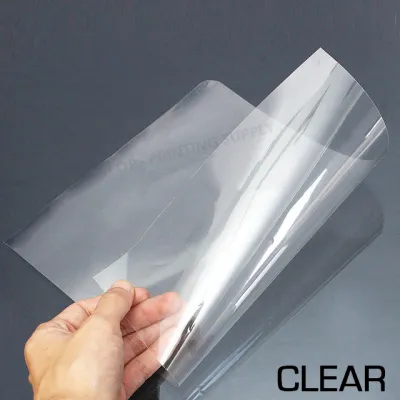
157 Lazada user ratings
mabilis dumating prang overnight nga lang e. solid product will buy more again and again salamat!
Clear and sharp images, Ideal for printing transparencies, Easy to use and handle,
Versatile for various projects, Highly recommended for professionals,
Great value for money, Versatile for various projects,
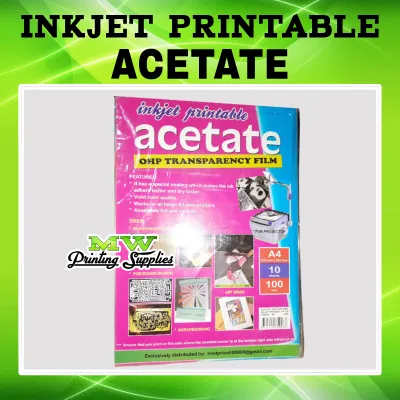
58 Lazada user ratings
Versatile for various creative uses, Clear and vibrant printing results, Great for crafting projects, Great value for the price, High-qualit…Read full reviewShow less
Versatile for various creative uses, Clear and vibrant printing results, Great for crafting projects, Great value for the price, High-quality printable acetate, Easy to use with inkjet printers,
The material feels durable and high quality, especially the braided exterior which prevents tangling and damage. The connectors fit tightly …Read full reviewShow less
The material feels durable and high quality, especially the braided exterior which prevents tangling and damage. The connectors fit tightly into my phone and charger, unlike other cables
Ideal for making window cards, Easy to use with inkjet printers, Durable and long-lasting, Clear and vibrant printing results, Great value f…Read full reviewShow less
Ideal for making window cards, Easy to use with inkjet printers, Durable and long-lasting, Clear and vibrant printing results, Great value for the price, Perfect for scrapbooking,
good quality printable acetate. Versatile for various creative uses. works with inkjet printers. You just need to let the ink dry first to a…Read full reviewShow less
good quality printable acetate. Versatile for various creative uses. works with inkjet printers. You just need to let the ink dry first to avoid smudges.
Great for crafting projects, High-quality printable acetate quality is about what I expected, still satisfactory though
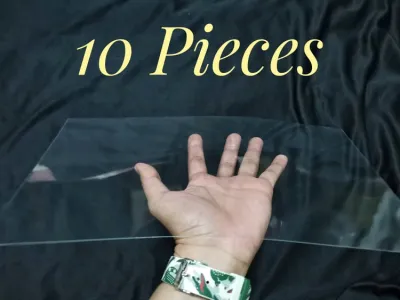
297 Lazada user ratings
Item received na po 😇 It was in good condition, well-packaged, shipped immediately and with excellent quality. Thank you Seller and Lazada. …Read full reviewShow less
Item received na po 😇 It was in good condition, well-packaged, shipped immediately and with excellent quality. Thank you Seller and Lazada. 😇
Durable and long-lasting material, Excellent clarity and transparency, Easy to cut and shape, Provides a professional finish,
The quality of this film is quite impressive. There is minimal scratches and it is easy to cut with a sharp knife.
complete orders.magagamit ko n sa cake roppers ko.thank u seller! please like and follow our page CRAFT&ROLL
Maganda naman kaya lang di manlang sinilid sa envelope. Konting mali sa pag bubukas mahihiwa ang acetate.
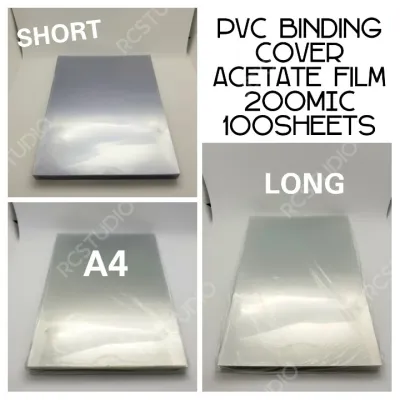
293 Lazada user ratings
Ideal for organizing paperwork, Great for presentations, Protects documents effectively, Thank you seller for sending my orders immediately.…Read full reviewShow less
Ideal for organizing paperwork, Great for presentations, Protects documents effectively, Thank you seller for sending my orders immediately. I send these to my sister who is residing abroad. She likes your product.
Clear and transparent cover, Great for presentations, Protects documents effectively, Easy to use, High-quality material, Perfect for bindin…Read full reviewShow less
Clear and transparent cover, Great for presentations, Protects documents effectively, Easy to use, High-quality material, Perfect for binding documents, Ideal for organizing paperwork, Versatile size options,
Protects documents effectively, High-quality material, Complete items Packaging well-packed Legit seller Fast shipping and delivery
Great for presentations, Ideal for organizing paperwork, Durable and long-lasting, Protects documents effectively,
Durable and long-lasting, Protects documents effectively, Versatile size options, so that ke
212 Lazada user ratings
got my item in good condition, just the right one for my project, fast deloIdeal for DIY projects, very. Great value for money, thanks to se…Read full reviewShow less
got my item in good condition, just the right one for my project, fast deloIdeal for DIY projects, very. Great value for money, thanks to seller and rider 😊
High-quality and reliable, Ideal for DIY projects, Durability:makapal sya kahit one sheet lng Size:all sizes are uniformed
Good quality and well packed. It came rolled however it straightened out right away. Fast delivery also.
nice 👍 be careful lang na ma cut yung skin nyo sa edge ng acetate film. nadaplisan kasi daliri ko 😹
Prices are valid at publication and may change. Please refer to the product page for the latest price.
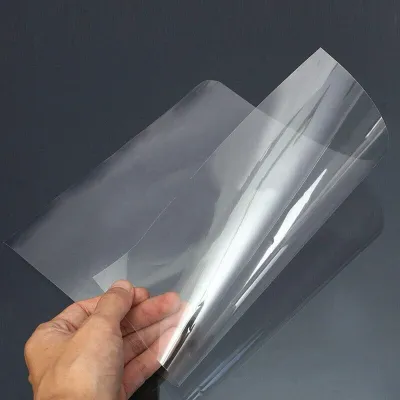
To ensure a successful print, you must identify the printable side of the film. For inkjet transparencies, one side is coated with a slightly rough, tacky, or textured finish designed to grab the ink, while the reverse side remains completely smooth and non-absorbent. You can easily identify the correct side by dampening your thumb and forefinger slightly and pinching a corner of the sheet; the side that feels sticky is the printable surface. For laser transparencies, both sides are often printable, but you should always check the manufacturer’s packaging for specific indicators, such as a removable paper strip or a notch in the corner, which dictates how the film should be oriented in the tray.
Adjusting Printer Settings for Clear, Smear-Free Results
Configuring your printer driver correctly is the most critical step in preventing wet ink or loose toner. Open your computer’s print dialogue box and navigate to the preferences or properties menu. Under the media type or paper type dropdown, select “Transparency,” “Film,” “Specialty Paper,” or “Heavyweight Glossy.” Choosing the correct profile tells the printer to adjust its internal mechanics, such as slowing down the feed rate and calibrating the ink volume or fuser temperature to match the non-porous nature of the plastic.

If your printer driver does not feature a dedicated transparency setting, look for options that accommodate thicker media profiles. Adjusting the paper thickness or weight setting manually prevents the printer from applying too much pressure, which can cause feed errors or physical damage to the sheet.
Lowering the print speed is highly recommended for both printer types. In inkjet printers, selecting a “High Quality” or “Photo” print mode slows down the print head, allowing the ink to settle precisely onto the specialized coating without pooling or running. For laser printers, a slower speed ensures the fuser has adequate time to apply consistent heat, allowing the toner to bond securely to the heat-resistant film.
Because drying speed and ink adhesion depend heavily on your specific combination of printer ink and film brand, always perform a small test print to verify compatibility. Run a layout and color test on a standard sheet of plain paper first. Place the printed test sheet directly underneath your transparency film to verify that your margins, text alignment, and color contrasts are correct before committing your specialty film.
Step-by-Step Printing Process to Prevent Jams
Slick plastic sheets are prone to slipping, misfeeding, and causing paper jams if loaded carelessly. Start by cleaning your printer’s input tray and paper feed rollers with a dry, lint-free microfiber cloth to remove any accumulated paper dust or debris. Dust buildup reduces the friction needed for the rubber rollers to grab the smooth acetate, leading to feed failures.
Never load a thick stack of transparency film into the main paper tray. Instead, load only one sheet at a time, or a very small stack of up to five sheets if explicitly permitted by the film manufacturer. Gently fan the sheets before loading to break any static cling, which is particularly common in air-conditioned offices or humid environments. Adjust the paper guides in the tray so they fit snugly against the edges of the film without bowing or bending the sheet.
Whenever possible, utilize your printer’s manual feed slot or multipurpose tray rather than the main cassette. The manual feed slot typically offers a straight-through paper path, allowing the stiff acetate to pass directly through the machine and exit the back or front without wrapping around tight internal rollers. This minimizes the risk of the sheet getting stuck or curling mid-print.
As each transparency finishes printing, remove it immediately from the output tray. Letting multiple sheets stack on top of one another can cause friction, leading to scratches on the printed surface or transferring wet ink from one sheet to the back of the next.
Drying and Handling Techniques to Avoid Smudges
Post-print handling determines whether your transparency remains crisp or becomes a smeared, unusable mess. If you printed using an inkjet machine, immediately lay the sheet completely flat on a clean, dry, and dust-free surface. Inkjet ink requires time to dry and cure fully within the specialized coating; depending on your local humidity levels and the specific ink brand, this process can take anywhere from several minutes to a few hours. Avoid touching the printed image or stacking the sheets until you have verified that the ink is completely dry to the touch.
If you used a laser printer, the transparency film may emerge from the machine feeling very warm or even hot due to the fuser’s heat. Place the printed sheet on a flat, heat-resistant surface and allow it to cool completely for a minute or two. Touching the toner while it is still hot can cause it to smudge, smear, or flake off the plastic surface before it has fully bonded.
Always handle your finished transparencies strictly by their outer edges or margins. Your fingers naturally carry oils and moisture that can easily transfer onto the smooth plastic surface, leaving visible fingerprints. These oils can degrade the printed image over time and will show up as dark, blurry smudges when projected onto a screen under bright overhead lights.
Cutting and Trimming Acetate Transparencies Cleanly
Trimming acetate sheets to size requires specialized tools to ensure clean, professional edges without cracking or tearing the plastic. For the straightest and cleanest cuts, use a heavy-duty rotary paper trimmer or a self-healing cutting mat paired with a metal straightedge and a sharp utility knife. A metal ruler is essential, as plastic or wooden rulers can easily be nicked by the blade, ruining your straight line.
Avoid using standard office scissors for trimming transparency film. Scissors apply uneven, shearing pressure that can easily crinkle, warp, or crack the stiff plastic, leaving jagged, sharp edges that look unprofessional and are difficult to handle.
When using a utility knife, safety must be your top priority. Keep your fingers well behind the edge of the metal ruler, and ensure the blade is sharp; a dull blade will slip and tear the plastic rather than slicing it. Hold the knife perpendicular to the film and apply light, even pressure. It is far safer and more effective to make three or four light passes along the straightedge to score and cut through the acetate gradually, rather than trying to force a single heavy cut.
Once your sheet is cut to size, take a moment to trim the sharp corners slightly, rounding them off with a small, controlled cut. This simple step prevents the sharp plastic corners from scratching your hands, damaging your storage sleeves, or scratching the glass stage of your overhead projector.
Troubleshooting Common Printing and Cutting Issues
If you experience ink smearing or toner flaking off the sheet, first verify that your film type matches your printer technology. Running inkjet film through a laser printer or vice versa is the most common cause of adhesion failure. If the materials are compatible, double-check your printer settings to ensure you selected the “Transparency” or “Heavyweight” media profile, which directly controls the ink volume and fuser temperature.
Frequent paper jams are often caused by static electricity or humidity, which makes the slick sheets stick together. In humid environments, acetate sheets can absorb ambient moisture or curl slightly at the corners, preventing the feed rollers from grabbing them cleanly. Store your unused film in its original resealable packaging with a silica gel packet, and feed the sheets individually to bypass static cling. If the rollers continue to slip, wipe them gently with a damp cloth to restore their grip.
Cracked, jagged, or white-stressed edges along your cuts indicate that your cutting tool is dull or your cutting surface is uneven. Always use a fresh, sharp blade and ensure your cutting mat is clean and free of debris. If using a paper trimmer, check that the blade carriage is securely aligned and not wobbling as it slides across the rail.
Frequently Asked Questions (FAQ)
Can I use regular acetate sheets from a craft store in my printer?
No, you should never use standard craft-grade acetate sheets in a printer. Craft acetate lacks the specialized chemical coating required to absorb and hold inkjet ink, which will cause the ink to pool and smear indefinitely. Furthermore, standard craft acetate is not heat-stabilized, meaning it can easily warp, bubble, or melt inside the high-heat fuser of a laser printer, potentially causing severe and costly damage to your machine’s internal components. Always purchase film explicitly labeled for printer use.
How do I clean a smudge off a printed acetate sheet?
Once ink or toner has cured on the transparency, attempting to clean a smudge within the printed area is highly likely to ruin the image. However, if you have oily fingerprints or dust on the unprinted margins, you can gently wipe them away using a dry, clean microfiber cloth. Avoid using water, rubbing alcohol, or harsh chemical solvents, as these liquids can dissolve the specialized inkjet coating, smear the toner, or cloud the clear plastic, permanently ruining the projection quality.

Community discussion
Share your experience or ask a question. Comments are reviewed before publication.