
A pen tablet (screenless) is ideal for users with limited budgets, restricted desk space, or a need for high portability, while a pen display (with a built-in screen) suits those who prioritize intuitive hand-eye coordination, professional workflows, and have a more flexible budget. Your choice ultimately depends on balancing your physical workspace, ergonomic needs, and willingness to adapt to different drawing mechanics.
Choosing the right drawing tablet is a pivotal decision for digital artists, designers, and hobbyists in the Philippines. The market offers two distinct paths: the classic, screenless pen tablet that acts as a precision trackpad, and the interactive pen display that lets you render strokes directly onto a high-resolution screen. Each option presents unique advantages in terms of tactile feedback, physical comfort, and financial investment. By understanding how these devices interact with your computer, your hands, and your creative environment, you can select a tool that enhances your artistic expression without causing unnecessary frustration.
Understanding the Core Hardware Differences
To make an informed decision, you must first understand the fundamental structural and operational distinctions between these two form factors. A pen tablet, often referred to as a graphics tablet or screenless tablet, consists of a flat, pressure-sensitive plastic surface. When you draw on this surface with a specialized stylus, your hand movements are mapped to your computer monitor. This setup creates a hand-eye separation workflow, meaning you look up at your monitor while your hand moves on the desk below. It requires your brain to bridge the physical gap between where you draw and where you look.
Products mentioned in this guide
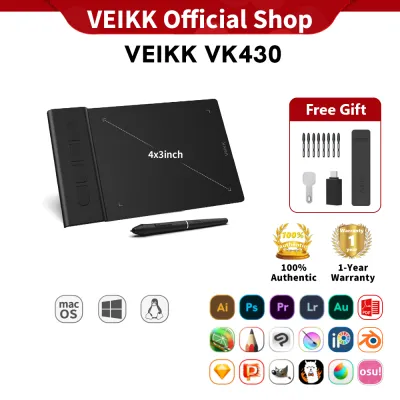
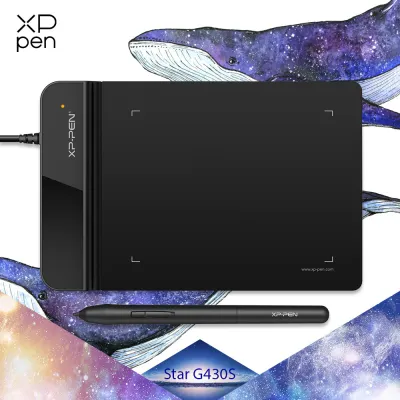
Prices are valid at publication and may change. Please refer to the product page for the latest price.
In contrast, a pen display integrates a high-definition liquid crystal display directly into the drawing surface. This interactive screen allows you to draw directly on your digital canvas, mimicking the traditional experience of putting pencil to paper. Because your hand and your eyes are focused on the exact same point, the visual feedback is instantaneous and highly intuitive. This direct interaction eliminates the spatial disconnect inherent in screenless models, making it a popular choice for those transitioning from traditional mediums like charcoal, graphite, or watercolor.
When evaluating either type of drawing tablet, you should verify several baseline specifications on the product label or manufacturer’s specification sheet. Look for the active area dimensions, which represent the actual portion of the tablet that registers pen input, rather than the overall physical size of the device. Additionally, check the pressure sensitivity levels; modern standards typically offer 8,192 levels of pressure, allowing for precise control over line weight and opacity. Finally, verify if the device supports tilt recognition, usually up to 60 degrees, which enables natural shading techniques when using digital brushes that mimic pencils or calligraphy pens.
Evaluating Workflow and the Learning Curve
The transition from traditional paper to a digital medium always involves an adaptation period, but the steepness of this learning curve depends heavily on the device you choose. With a screenless pen tablet, the hand-eye coordination required can feel highly unnatural at first. Beginners often struggle to locate their cursor or maintain smooth, continuous lines while looking away from their hands. This adjustment phase can take anywhere from a few days to several weeks of daily practice. Conversely, a pen display offers immediate familiarity, allowing you to sketch, trace, and paint with the same natural coordination you would use on a physical sketchbook.

Beyond basic drawing mechanics, your daily workflow efficiency is deeply influenced by the physical interface of the device. Many drawing tablets, both screenless and display-based, feature customizable shortcut keys, touch rings, or dial controllers built directly into the bezel. These physical buttons allow you to quickly undo strokes, adjust brush sizes, zoom in on details, or pan across your canvas without constantly reaching for your keyboard. When choosing a device, consider how many physical keys you require and whether they can be programmed on a per-application basis to match your preferred software.
Before finalizing any purchase, it is crucial to verify driver stability and software compatibility for your specific operating system. A drawing tablet is only as good as its software driver; unstable drivers can lead to cursor lag, loss of pressure sensitivity, or sudden crashes mid-session. Check the manufacturer’s official website to ensure they provide regular driver updates for your operating system, whether you use Windows, macOS, or compatible Linux distributions. If you plan to connect the tablet to an Android mobile device or a Chromebook, verify that the tablet’s firmware supports these platforms without requiring complex installation steps.
Space, Portability, and Ergonomics
Your physical environment plays a massive role in determining which drawing tablet type will integrate seamlessly into your daily routine. A screenless pen tablet has a remarkably small desk footprint and requires minimal cable management, often operating via a single USB cable or a wireless Bluetooth connection. This makes it incredibly easy to keep your workspace clean and organized. A pen display, however, requires multiple connections—typically power, video input, and data transfer—which can lead to a cluttered desk. Some modern displays support a single, full-featured USB-C connection, but you must verify that your computer’s port supports this standard before relying on it.
Portability is another critical factor, especially for students, freelancers, or artists who enjoy working in local cafes or co-working spaces. Smaller pen tablets are lightweight, durable, and easily slide into a standard backpack alongside a laptop. They do not feature fragile glass screens, making them highly resilient to the bumps and vibrations of travel. Pen displays, on the other hand, are heavier, bulkier, and inherently fragile due to their glass panels. They require careful packing, protective sleeves, and access to a stable power source, making them far less suitable for mobile work in tropical climates where sudden rain showers or high humidity might pose risks to sensitive external screens.
Ergonomics should never be overlooked, as long drawing sessions can easily lead to physical strain. When using a screenless pen tablet, you can sit upright and look straight ahead at your main monitor, which promotes a healthy, neutral neck posture. With a pen display, the natural tendency is to hunch over the screen, leading to neck, shoulder, and back pain over time. To mitigate this, you must consider the ergonomics of your setup. Many professional artists use adjustable monitor arms or dedicated multi-angle stands to elevate the pen display to a comfortable working angle, reducing the physical strain on their cervical spine.
Budget and Long-Term Value Considerations
Evaluating the true cost of ownership involves looking beyond the initial purchase price to consider hidden expenses and the expected lifespan of the device. In the Philippines, screenless pen tablets represent a highly accessible entry point, with reliable entry-level models starting well under ₱3,000, while professional-grade screenless tablets generally stay below ₱20,000. Pen displays demand a much higher financial commitment; entry-level displays typically start around ₱12,000, and large, professional-grade displays with high color accuracy can easily exceed ₱50,000.
Beyond the initial price tag, pen displays often come with hidden costs that you must factor into your budget. To protect the screen from scratches and reduce glare under bright tropical lighting, you may need to purchase high-quality matte screen protectors. Furthermore, the textured surface of a pen display—whether achieved through an applied film or chemically etched glass—increases friction. This friction provides a satisfying, paper-like feel, but it also accelerates pen tip wear. You will need to budget for replacement stylus nibs more frequently than you would with a smooth, screenless tablet.
The typical lifespan and upgrade cycles of these devices also differ significantly. Screenless pen tablets are incredibly durable because they lack complex display panels, backlights, or delicate glass layers. A high-quality screenless tablet can easily last five to ten years, surviving multiple computer upgrades as long as the manufacturer continues to update the software drivers. Pen displays, however, are subject to the natural degradation of screen components, such as backlight dimming, color shifting, or the development of dead pixels over time. Consequently, they may require replacement or upgrading sooner than their screenless counterparts.
Decision Framework: Which Drawing Tablet Fits You?
To finalize your choice, you can use this conditional framework to match your specific artistic needs, workspace, and budget to the correct device type.
Choose a pen tablet if:
- Your budget is limited, and you want to maximize performance per peso.
- You have limited desk space or prefer a clean, minimalist workspace with minimal cables.
- You need a highly portable device that you can easily pack into a bag for travel, school, or cafe work.
- You prioritize long-term durability and want a device that will last for many years without screen degradation.
- You already own a high-end, color-accurate monitor and prefer to use it as your primary visual reference.
Choose a pen display if:
- You struggle with hand-eye coordination and want an intuitive, natural drawing experience that mimics traditional paper.
- Your work involves intricate detailing, complex photo retouching, or direct tracing where drawing directly on the canvas saves significant time.
- You have a dedicated, spacious desk setup that can accommodate a larger device and its associated cables.
- Your budget allows for both the initial purchase and potential accessories like adjustable stands, screen protectors, and replacement nibs.
Verify first if:
- Your computer has the necessary physical ports (such as HDMI, DisplayPort, or a full-featured USB-C port that supports DisplayPort Alternate Mode) to connect a pen display.
- Your graphics card can handle driving an additional high-resolution screen alongside your existing monitors without causing system lag.
- Your workspace has adequate ventilation, as larger pen displays can generate noticeable heat during prolonged use, which can be uncomfortable in warm, humid environments.
Frequently Asked Questions (FAQ)
Can I use a pen tablet without a computer?
Standard pen tablets and most pen displays are input devices, meaning they do not have their own processors, storage, or operating systems. They must be connected to a compatible computer, laptop, or mobile device to function. If you require a completely standalone drawing experience where you do not need to connect to an external computer, you would need to look into specialized pen computers or tablet computers that run full operating systems independently.
Do pen displays work with all drawing software?
Yes, pen displays generally function as secondary monitors with pen-input capabilities, meaning they are compatible with almost all standard creative software, including digital painting, vector illustration, and photo editing applications. However, before purchasing, you should verify that your specific software supports advanced features like pressure sensitivity and tilt recognition through the tablet’s drivers, as some older or highly specialized programs may require manual configuration.
Is a larger active area always better for beginners?
A larger active area is not always the best choice for beginners. While a larger surface allows for broad, sweeping arm movements that can prevent wrist strain, it also requires significantly more desk space and can lead to physical fatigue if you are not used to drawing with your entire arm. For most beginners, a medium-sized tablet offers the ideal balance, providing enough space for comfortable drawing without requiring excessive hand movement or taking up too much desk real estate.
Community discussion
Share your experience or ask a question. Comments are reviewed before publication.