
Choosing between a CASIO and a Sharp printing calculator for daily business accounting comes down to matching your physical typing habits with the machine’s operational layout. Both brands produce reliable desktop workhorses that generate physical paper trails for audits, tax preparation, and daily sales reconciliation. However, they differ subtly in key placement, tactile feedback, and paper-feeding mechanisms. Rather than one brand being universally superior, the ideal choice depends on whether you prefer CASIO’s compact, streamlined key spacing or Sharp’s traditional, heavy-duty key travel and high-contrast display angles.
In tropical business environments, such as retail offices or warehouse desks in the Philippines, high humidity can affect paper feeding and ink drying times. Selecting a model requires looking closely at how each brand handles paper tension, ink ribbon replacement, and daily wear. By evaluating your specific workflow, you can select a machine that minimizes typing errors and keeps your physical records clear and legible for years.
Core Differences in Design and Workflow
The physical layout of a calculator with receipt printing paper directly dictates your daily typing speed and accuracy. When processing long columns of figures, your muscle memory relies on consistent key spacing and a predictable layout. CASIO models often feature a more compact footprint, making them highly suitable for crowded desks or smaller retail counters where space is at a premium. Their keys are typically spaced closely together, which can accelerate data entry for users with smaller hands or those accustomed to modern computer keyboards.
Products mentioned in this guide
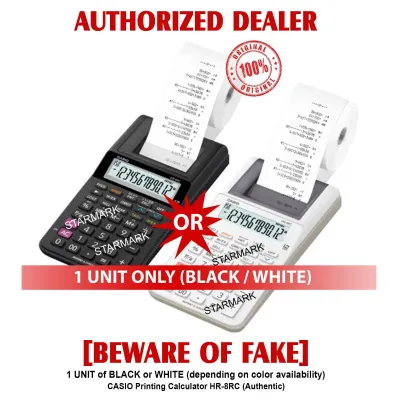
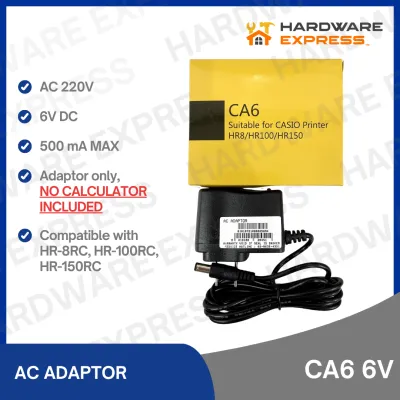
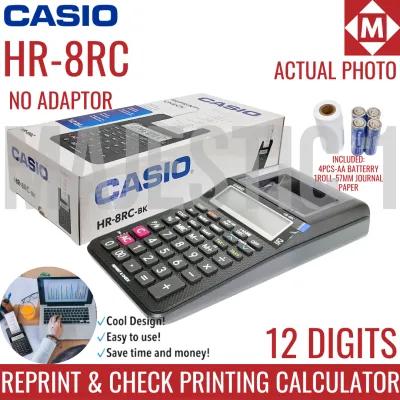
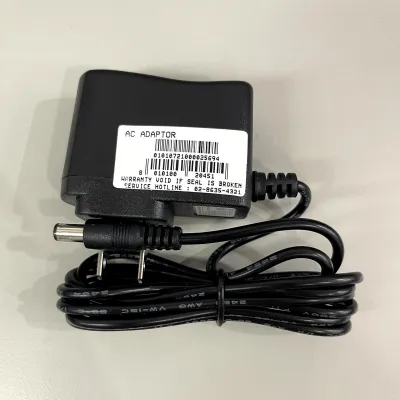
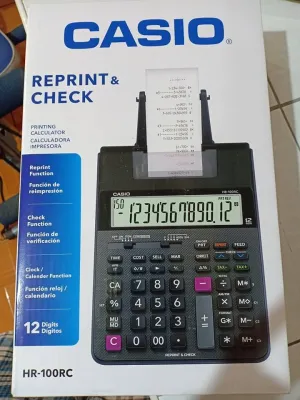
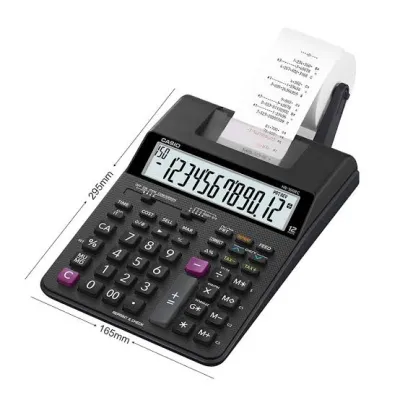
Prices are valid at publication and may change. Please refer to the product page for the latest price.
In contrast, Sharp printing calculators generally favor a larger, more traditional desktop footprint. This design allows for wider key spacing and a distinct separation between the numerical pad and the functional business keys. For accountants who use the touch-typing method without looking down, this extra spacing can significantly reduce accidental double-key presses. The physical angle of the display also differs, with Sharp often utilizing a slightly steeper, fixed high-contrast screen to reduce overhead glare, while CASIO frequently employs a flatter profile or adjustable display angles on select models.
Transitioning from a standard desktop calculator to a printing model introduces a learning curve, particularly regarding the feed mechanism and specialized business keys. Both brands equip their mid-range and heavy-duty models with dedicated keys for tax calculations, cost-sell-margin analysis, and grand totals. However, the physical accessibility of these keys varies. CASIO often groups tax and margin keys near the top of the keyboard, requiring a deliberate reach, whereas Sharp frequently integrates them closer to the main numerical pad for rapid access during high-volume transactions. You should physically test the key resistance and layout of both brands to determine which configuration feels more natural to your hand.
Print Quality and Paper Compatibility
Clear, legible printouts are essential for maintaining accurate physical records, especially when matching daily receipts to digital ledger entries. Printing calculators generally utilize one of three mechanisms: ink rollers, ink ribbons, or thermal print heads. Ink rollers are common in compact, portable models, while heavy-duty desktop units from both CASIO and Sharp typically rely on two-color (red and black) ink ribbons. Thermal printing models, though quieter and faster, require specialized paper and are less common in traditional heavy-duty accounting environments where long-term print durability is required.

When selecting a calculator with receipt printing paper, verifying paper roll compatibility is a critical step. Most standard desktop models from both brands accept standard 57mm or 58mm paper rolls, but the internal paper holder and external arm designs differ. CASIO often uses a sturdy, integrated metal or heavy plastic arm that keeps the paper roll aligned, reducing the risk of paper skewing during rapid printing. Sharp models frequently feature a drop-in or external wire arm system that allows for quick roll replacements but may require more careful alignment to prevent feeding issues.
In humid tropical climates, paper can absorb moisture from the air, leading to potential feeding jams or ink smudging. To prevent these issues, you should observe how the paper feeds through the cutter. A clean, sharp tear-off edge prevents paper fibers from clogging the print head over time. During high-volume batch calculations, check the printing speed and ink transfer quality; a high-quality ribbon mechanism should produce crisp, dark numbers that dry instantly, preventing smudges when the paper is handled or filed away in folders.
Durability and Long-Term Maintenance
The longevity of a printing calculator depends heavily on its build quality and how easily it can be maintained. Heavy-duty models from both brands are designed to withstand millions of keystrokes, utilizing durable plastic keys with molded signs that will not wear off over time. Standard or entry-level models may use printed keycaps, which can fade under heavy daily use. Tactile feedback is another indicator of durability; a solid, mechanical click or a firm, cushioned bottom-out indicates a robust switch mechanism that can handle rapid, repetitive typing.
Routine maintenance is necessary to keep any printing calculator operating smoothly and to prevent costly paper jams. Dust, paper lint, and ink residue can accumulate inside the printing compartment over time. You should regularly clean the print head area using a dry, lint-free cloth or a gentle burst of compressed air. When replacing ink rollers or ribbons, always follow the manufacturer’s specific instructions to avoid bending the delicate print wire or misaligning the ribbon guide. Forcing a ribbon cartridge into place can cause permanent mechanical damage.
Recognizing the warning signs of mechanical wear can save your machine from catastrophic failure. If you notice the paper feeding unevenly, hear grinding noises during printing, or observe faint or incomplete characters despite a fresh ink ribbon, stop using the printing function immediately. Continuing to operate a jammed or misaligned printing mechanism can burn out the internal motor or strip the plastic gears. In such cases, switching the calculator to a non-print mode until it can be inspected or serviced is the safest course of action.
Value and Total Cost of Ownership
Evaluating the financial impact of your calculator choice requires looking beyond the initial purchase price in Philippine Pesos (₱). Entry-level printing calculators from both CASIO and Sharp are generally affordable, often starting under ₱2,500, making them accessible for small retail shops and home offices. Heavy-duty, professional-grade models designed for continuous corporate accounting can range from ₱4,000 to over ₱8,000. While the initial investment for a heavy-duty model is higher, its robust construction often translates to a lower cost per year of service.
Ongoing operational costs are heavily influenced by the availability and price of consumables. Standard 57mm paper rolls are widely available in local office supply stores and online marketplaces, but proprietary ink rollers or specific ribbon cartridges can vary in cost and accessibility. Before committing to a specific model, verify that its replacement ink ribbon or roller is easy to source locally. Using generic or poorly fitting third-party consumables can lead to poor print quality or mechanical jams, potentially voiding the manufacturer’s warranty.
Power source requirements also contribute to the total cost of ownership. Compact, portable printing calculators often run on AA batteries or a small AC adapter, whereas heavy-duty desktop models require a direct AC power connection. If your office experiences frequent power fluctuations, a model with an internal backup battery to preserve your grand totals and tax rate settings is highly beneficial. Factor in the cost of replacing these backup batteries over time, as well as the overall energy efficiency of the unit during long business hours.
Decision Framework: Which Brand Fits Your Workflow?
To make the final purchasing decision, you must weigh your specific office environment and typing preferences against the design strengths of each brand. There is no universal winner, as both manufacturers produce highly capable machines that excel under different conditions.
Choose CASIO if your daily workflow demands:
- A compact desktop footprint that leaves ample room for other paperwork.
- Slightly tighter key spacing that accommodates rapid, light-touch typing.
- Straightforward, dedicated keys for quick tax and margin calculations without complex menu navigation.
Choose Sharp if your daily workflow demands:
- A larger, heavier chassis that remains perfectly stable on the desk during rapid typing.
- Generous key spacing that minimizes accidental inputs for touch-typists.
- A steep, high-contrast display angle that remains highly legible under bright, overhead office lighting.
Neither brand may fit your needs if your business requires digital receipt integration, cloud-based ledger syncing, or silent operation, in which case a digital accounting software suite is a more appropriate solution. Before purchasing, always verify that the specific model supports standard paper widths available in your area and matches the local voltage requirements of your office.
Frequently Asked Questions (FAQ)
Can I use generic thermal paper in an ink-based printing calculator?
No, you should not use thermal paper in an ink-based or ribbon-based printing calculator. Thermal paper relies on heat to activate a chemical coating that creates an image, whereas ink-based calculators require standard bond paper that can absorb ink from a roller or ribbon. Using thermal paper in an ink-based machine will result in extremely faint, smudged, or completely invisible printouts, and the slick coating of thermal paper can cause the rubber feed rollers to slip, leading to frequent paper jams.
How often should I replace the ink roller or ribbon?
There is no fixed timeframe for replacing your calculator’s ink roller or ribbon, as it depends entirely on your daily printing volume. Instead, rely on observable visual cues: when the printed numbers transition from a sharp, dark black or vibrant red to a faded gray or light pink, it is time for a replacement. If you notice the print quality deteriorating rapidly or if the ribbon begins to fray and snag on the paper feed, consult your manufacturer’s manual for the correct replacement part number and installation procedure to restore clean, legible printouts.

Community discussion
Share your experience or ask a question. Comments are reviewed before publication.