
Printing custom magnets at home is a straightforward process when you match the specialty paper to your specific printer technology and configure the feed path correctly. Standard home inkjet and laser printers can handle magnetic sheets, provided you verify the printer’s maximum paper thickness and use the manual bypass or rear feed tray. Because magnetic sheets are significantly heavier and stiffer than standard copy paper, successful printing relies on adjusting your printer’s media settings to accommodate the extra weight and allowing sufficient drying time, particularly in humid tropical environments. By taking a few precautionary steps to prepare your hardware and select the correct software settings, you can create durable, professional-looking magnets for home organization, crafts, or business promotions.
Check Printer Compatibility and Paper Specifications
Before purchasing magnetic sheets from an online marketplace or stationery store, check your printer’s user manual. Look for the maximum paper weight, usually measured in grams per square meter (GSM), or the maximum supported media thickness in millimeters. Standard magnetic sheets typically range from 0.3 mm to 0.6 mm in thickness, which often exceeds the capacity of basic, low-end document printers. Attempting to feed sheets that exceed these limits can strain the drive motor or cause permanent damage to the internal feed mechanism.
Next, inspect the packaging of the magnetic paper. Magnetic sheets are not universally compatible; they are specifically engineered with surface coatings tailored for either inkjet or laser printing. Inkjet magnetic paper features an absorbent coating designed to lock in liquid dye or pigment inks, while laser-compatible magnetic paper is built to withstand the high heat of a laser printer’s fuser unit without melting or peeling.
Products mentioned in this guide
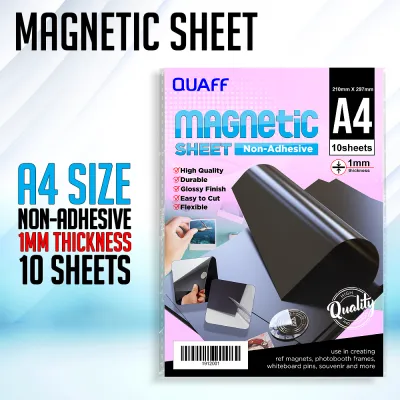
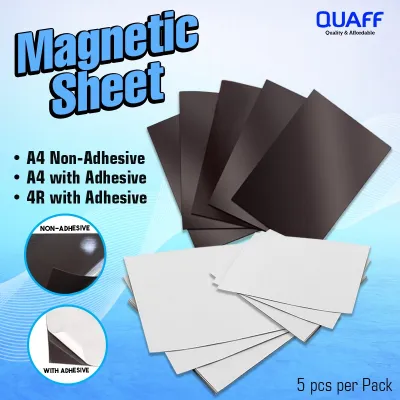
![Magnetic Sheet A4 [CHEAPEST]](https://img.lazcdn.com/g/p/b1c535bd1593b3e7a97e261179a52fdb.jpg_400x400q80.jpg_.webp)
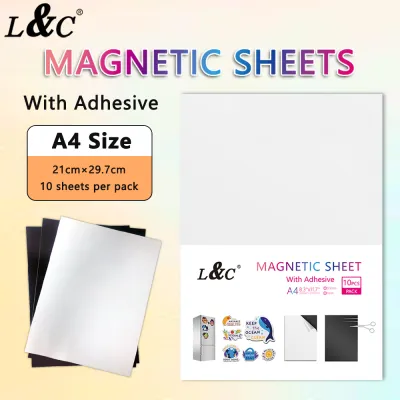
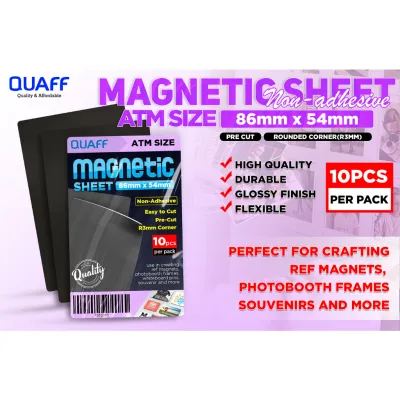
Prices are valid at publication and may change. Please refer to the product page for the latest price.
Finally, evaluate your printer’s physical paper path. Printers that pull paper from a bottom cassette and loop it 180 degrees to exit at the top are highly prone to jamming when fed with stiff magnetic sheets. A printer with a straight-through paper path, such as a rear-loading tray or a front manual feed slot, is highly recommended because it allows the rigid sheet to pass through the internal rollers with minimal bending.
Prepare the Magnetic Paper and Printer
Proper preparation of both the medium and the hardware prevents feeding failures before you even press print. Start by fanning the magnetic sheets gently. In warm, humid climates, static electricity and moisture can cause these heavy sheets to cling together tightly, leading the printer to pull multiple sheets at once. Fanning them introduces air between the sheets, breaking the static bond and ensuring the printer’s pickup rollers grab only one sheet at a time.

Carefully inspect each sheet for any curled corners, bends, or warping. Because magnetic sheets are often packaged in tight stacks, the edges can sometimes curve upward. If you notice any warping, gently flex the sheet in the opposite direction or place it under a heavy, flat object like a stack of books for a few hours until it lies completely flat. Feeding a curled sheet into your printer increases the risk of the print head striking the paper surface, which can cause unsightly ink smudges.
Additionally, take a moment to inspect your printer’s paper feed rollers. Over time, rollers accumulate paper dust, micro-debris, and oils that reduce their grip. Clean the rollers according to your manufacturer’s instructions—typically using a slightly damp, lint-free microfiber cloth—to ensure the rubber rollers can firmly grab and pull the heavy magnetic backing without slipping.
Load the Paper Correctly
Loading magnetic paper requires a different approach than handling standard multi-purpose paper. Always bypass the main bottom paper cassette. Instead, utilize the manual feed slot or the rear paper tray, which keeps the paper path as straight as possible and reduces mechanical strain on the feed mechanism. Loading only one sheet at a time is highly recommended to prevent the printer from misfeeding or pulling multiple heavy sheets simultaneously.
Determine the printable side of the sheet before loading. Magnetic paper consists of a dark, flexible magnetic backing on one side and a white, coated paper or vinyl surface on the other. You must print on the white, coated side. Check your printer’s feed tray icons to see if paper should be loaded face-up or face-down; for instance, most rear-loading trays require the printable side to face forward, while front manual slots often require it to face downward.
Once the sheet is positioned in the tray, adjust the physical paper guides. Slide them inward so they touch the edges of the magnetic sheet snugly but without applying so much pressure that the sheet buckles or bends. Secure, well-aligned guides prevent the heavy sheet from shifting sideways mid-print, which would cause crooked designs or uneven margins.
Adjust Printer Settings for Magnetic Paper
To achieve crisp lines and vibrant colors, you must configure your computer’s print dialog settings to match the unique properties of magnetic media. Never leave the media type set to “Plain Paper.” Instead, open your printer’s advanced properties and select an option such as “Heavy Paper,” “Cardstock,” “Label Paper,” or “Specialty Matte.” This setting tells the printer to slow down the feed rate and adjust the roller pressure to accommodate the thicker material, ensuring a smooth pass.
Adjusting the print quality is also essential for proper adhesion. For inkjet printers, choosing a high-quality or photo setting ensures precise ink deposition, though you may need to monitor the output to ensure the ink does not pool on the coated surface. For laser printers, selecting a heavy media setting ensures the fuser unit reaches the correct temperature and maintains the slower speed necessary to melt and bond the dry toner particles to the sheet.
Most importantly, ensure that duplex (double-sided) printing is strictly disabled in your print settings. Attempting to run a thick, magnetic sheet through an automatic duplexer will almost certainly cause a severe paper jam, and the high heat or physical bending during the duplexing cycle can permanently damage your printer’s internal gears and sensors.
Print, Dry, and Finish Your Project
Before committing your specialty magnetic sheet to the printer, perform a test run. Print your design on a standard sheet of plain paper first to verify the layout, margins, and color alignment. This step allows you to make any necessary adjustments to your design software without wasting expensive magnetic sheets. Once you are satisfied with the test print, load a single sheet of magnetic paper into the printer and execute the print job.
After the printed sheet emerges from the printer, handle it with extreme care. If you are using an inkjet printer, the wet ink requires time to dry and cure on the non-porous coating. Lay the sheet completely flat on a clean, dry surface in a well-ventilated room, away from direct sunlight or high humidity, and avoid touching the printed surface for at least twenty to thirty minutes to prevent smudging. In highly humid tropical environments, extending this drying time to a full hour is a safe practice to ensure the ink is completely set.
When the print is fully dry, you can cut out your designs. Because magnetic sheets are thick and dense, standard lightweight office scissors can struggle and leave jagged, frayed edges. For clean, professional borders, use a sharp pair of heavy-duty craft shears, a rotary paper trimmer, or a utility craft knife paired with a heavy metal ruler. Always work on a dedicated cutting mat, apply steady pressure, and keep your fingers clear of the blade’s path to ensure safety.
Troubleshoot Jams and Print Quality Issues
Despite careful preparation, issues like paper jams or ink smearing can occasionally occur. If a magnetic sheet becomes stuck inside the printer, turn off the device immediately to prevent electrical or mechanical damage. Refer to your printer’s manual for the designated jam-clearance doors, and gently pull the sheet out in the direction of the paper path; never yank the sheet backward with excessive force, as this can bend the delicate internal feed rollers or break optical sensors.
If you notice that the printed image is blurry, smears easily, or if laser toner is flaking off the surface, the issue is likely related to your media settings. Try reducing the print density in your printer driver, or switch to a slightly lighter cardstock setting to find the optimal balance of heat and speed. If the ink continues to bead up on an inkjet print, double-check that you are printing on the coated side and not the magnetic backing, as the dark magnetic side cannot absorb ink.
If your printer repeatedly fails to pull the sheet, makes grinding noises, or displays persistent error codes, do not attempt to force the paper through. Stop the process immediately and consult the printer manufacturer’s customer support or a qualified technician. Forcing incompatible or overly thick media through a home printer can burn out the drive motor or misalign the print head carriage, leading to costly repairs.
Frequently Asked Questions (FAQ)
Can I use the same magnetic paper for both inkjet and laser printers?
No, you should not use the same magnetic paper interchangeably. Inkjet and laser printers use entirely different technologies to apply images to paper. Inkjet magnetic sheets feature a highly absorbent, micro-porous coating designed to lock in liquid ink, whereas laser magnetic sheets are engineered to withstand the intense heat of a laser fuser unit. Using inkjet magnetic paper in a laser printer can cause the coating to melt onto the fuser, potentially ruining your printer, while using laser paper in an inkjet printer will result in wet, pooling ink that never dries. Always verify the compatibility label on the packaging before printing.
Will printing on magnetic paper damage my printer's rollers?
Occasional printing on magnetic paper that falls within your printer’s official weight and thickness specifications is generally safe and will not cause damage. However, because magnetic sheets are heavy and rigid, frequent or heavy-volume printing can accelerate the wear and tear on your printer’s rubber feed rollers and drive gears. To minimize mechanical stress, always feed magnetic sheets one at a time through the manual bypass tray or rear feed slot rather than loading multiple sheets into the standard paper cassette.

Community discussion
Share your experience or ask a question. Comments are reviewed before publication.